

Chairs need to have access to their faculty’s accounts in Faculty180 in order to upload certain documents, such as peer observations and annual evaluation conference memorandums. Access to accounts needs to be updated whenever there is a new chair, a re-elected chair, a new acting chair, or when new faculty accounts are added to Faculty180, which occurs automatically around the beginning of the semester.
To grant account access, go to the Administration > Administration menu, then click the Faculty link in the Add/Edit section. Click the link with the number of faculty corresponding to your unit, then search for the chair and click their pencil icon to edit their profile.

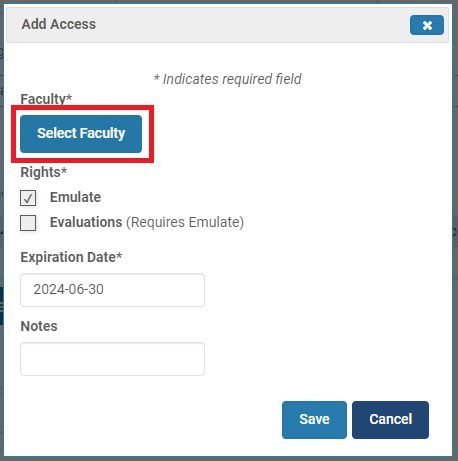
Scroll down to the Access Rights to Other Accounts section. Click the Add button, then the Select Faculty button.

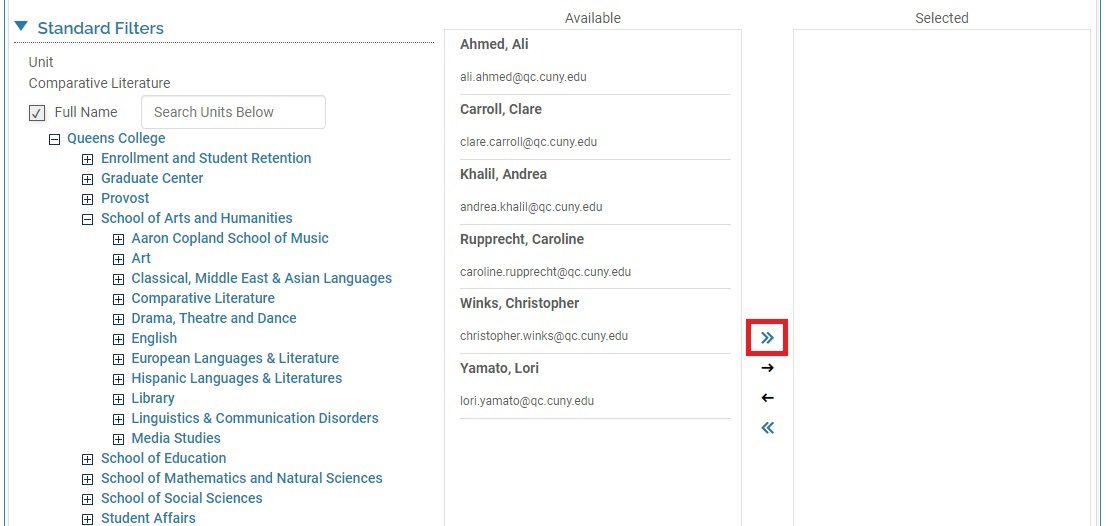
Click the Change button, then click the plus icons in the unit tree to navigate to this chair’s department. Then click the name of the department.

A list of faculty for that department will appear. Click the double right arrow to move all faculty to the right column. Finally, click the Select Faculty button at the bottom.
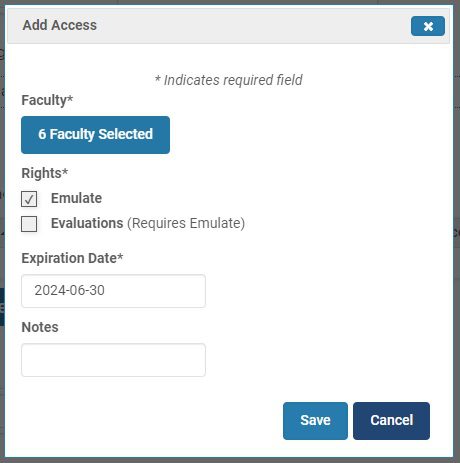
Back at the Add Access menu, the number of selected faculty should be shown. Click the Emulate option and set the Expiration Date to the final date of the chair’s term. Chairs are typically elected for three years, from July 1 to June 30. If you are not sure of the term end date, you can use any date within the next three years, but remember to remove access when a new chair is elected. Finally, click the Save button.
The list of faculty may not appear yet in the account access list. You may need to refresh the page to verify the access has been added.