
How to Secure Your Zoom Sessions
As many of our courses are presented online, it is important to take steps to prevent incidents of “Zoom bombing,” where an unauthorized user gains access to and disrupts classes in progress. None of these strategies can guarantee security, but these measures – particularly requiring users to authenticate their identities – can reduce disruptions.
Please review the CUNY Zoom security protocol.
Enable security features
To enable these security features in your account, go to https://cuny.zoom.us . Enter your CUNY username and password (ie: John.Doe89@login.cuny.edu), if you have any difficulty logging in, please contact support@qc.cuny.edu.
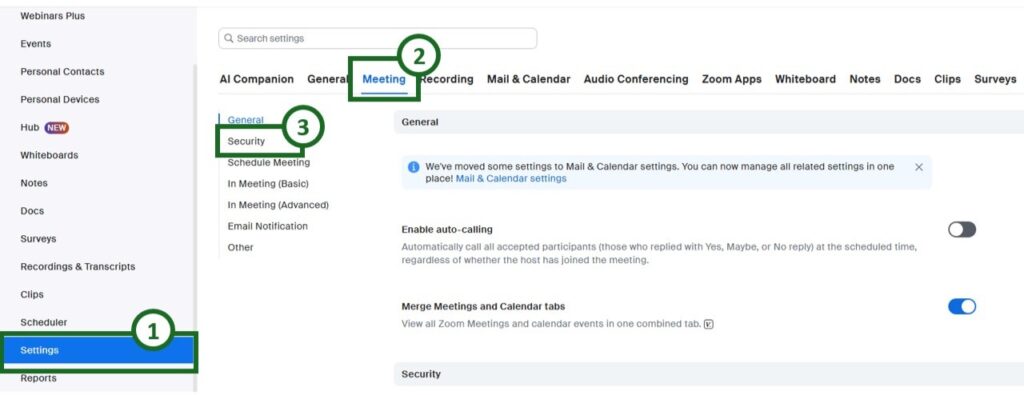
- Click “Settings” on the left sidebar.
- Click “Meeting” in the top menu.
- Click “Security.”
How to require users to authenticate
Once you are in “security” (see above):
- Scroll down to a setting called “Only authenticated meeting participants and webinar attendees can join meetings and webinars,” and slide the button to the right so it turns blue (if it is already blue, it has already been enabled).

Enable the Waiting Room
- Move the “Waiting Room” button to the right until it turns blue. If it is already blue, the Waiting Room is already enabled.

Enable Waiting Room in the Desktop App
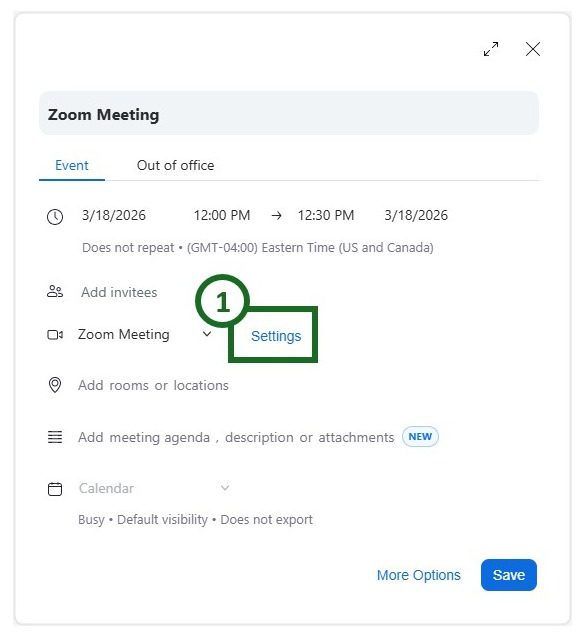
Under “Schedule Meeting”
- Click on Settings
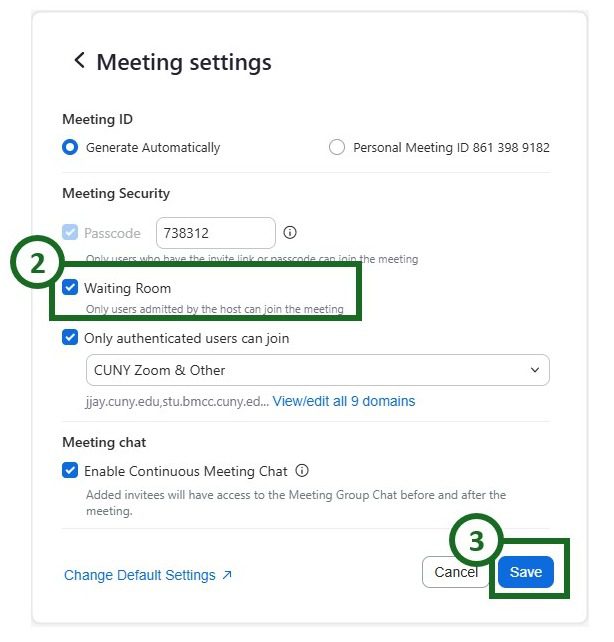
- Check the box for Waiting Room.
- Click Save.
Locking the room
Once the Zoom session is in progress, it can be “locked,” preventing any additional users from accessing the class. After the “lock” is enabled, any additional attempts to access the session will automatically be rejected. While this can be a way to exclude unauthorized visitors, it also means students in your class who may be having technical difficulties, such as a lost connection, will be unable to rejoin. We do not recommend enabling this feature as a general practice but to limit its use for extenuating circumstances, like a “Zoom bombing.”
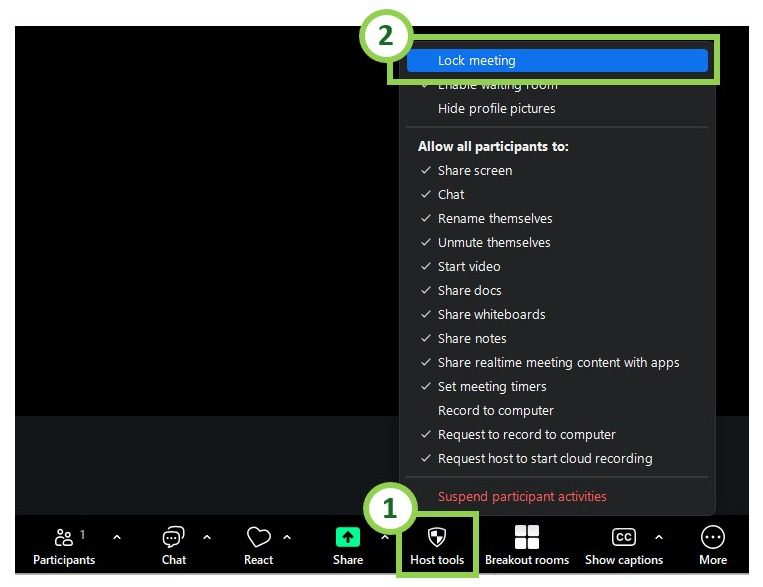
- To Lock the room, click “Host Tools” on the Zoom control panel (usually located at the bottom of the screen)
- Click “Lock Meeting” in the resulting pop-up menu.
As none of these features in isolation will prevent Zoom issues in their entirety, please use a combination of the above security measures. Bear in mind, however, no matter how secure you aim to be, there will be people who try to circumvent your efforts. These security measures, especially requiring users to authenticate through Zoom will significantly reduce Zoom issues, and if they do occur, make it easier to identify the responsible party.
For that reason, please see below for the procedures of reporting a Zoom incident.
Reporting Zoom bombing
If you encounter a Zoom bomber during your class, you can report this incident. Document the time, name, and whatever other information you have about the person/people who enacted the disruption. You can retrieve detailed information on all users in your session in your CUNY Zoom site.
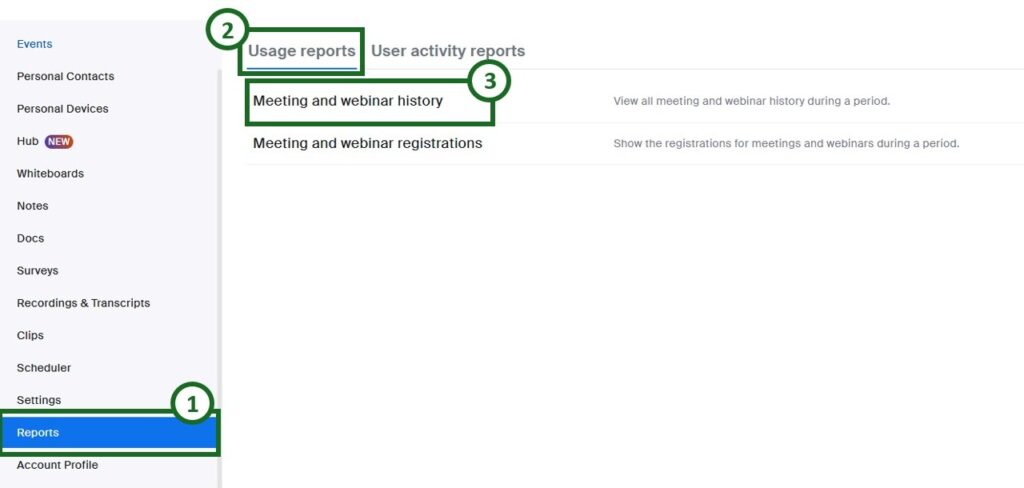
- Click on “Reports” in the left side menu.
- Click on “Usage Reports” in the top menu.
- Click on “Meeting and Webinar History.”
- Adjust the date range settings so that the date the incident occurred is shown.
- Click Search.
- Identify the session where the Zoom bomb occurred.
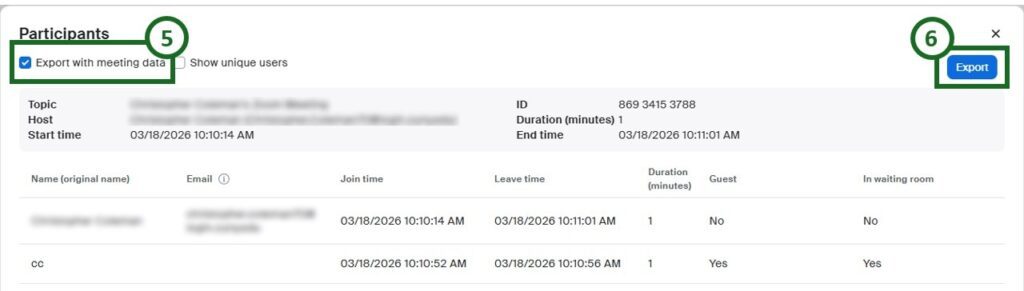
- Click on the number in the Participants column. This brings up a list of participants with their start time, email address, and username.
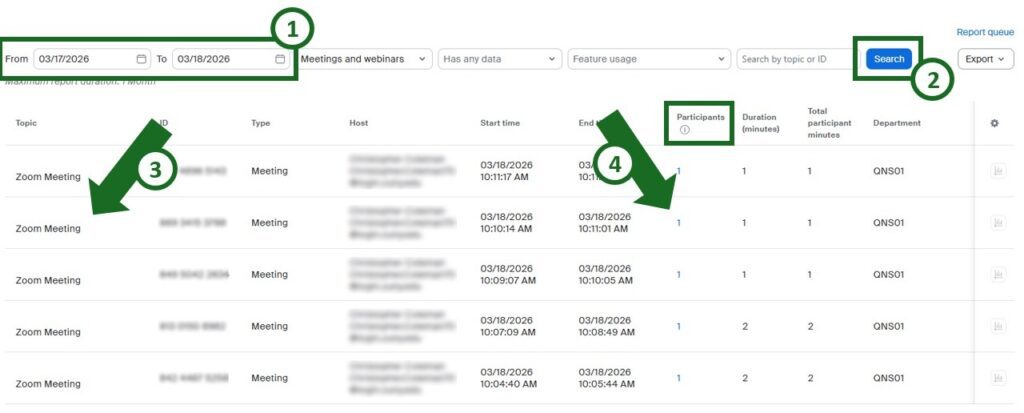
Meeting Participants will show the CUNY login of the user in question if you have enabled “Require users to authenticate.”
- Take a screenshot of the Zoom bomber’s information (including which user it was and when the incident occurred), or select “Export with Meeting data.”
- Click “Export” to download the report as a CSV file.
- Report this information to Office of Public Safety at publicsafety@qc.cuny.edu or 718-997-5912 and the Office of Vice President for Student Affairs at VPSA@qc.cuny.edu or 718-997-5500. Be sure to include the documentation of the log of the incident, specifying the user and the time the Zoom bombing occurred.