


Headings
Format your Word documents using the built-in heading styles. Headings and subheadings help the reader understand the organization of the text and navigate to specific content. To enable screen readers to convey organizational information to a blind, visually impaired, or other user, it is essential to use the built-in headings rather than making text bolder or larger.
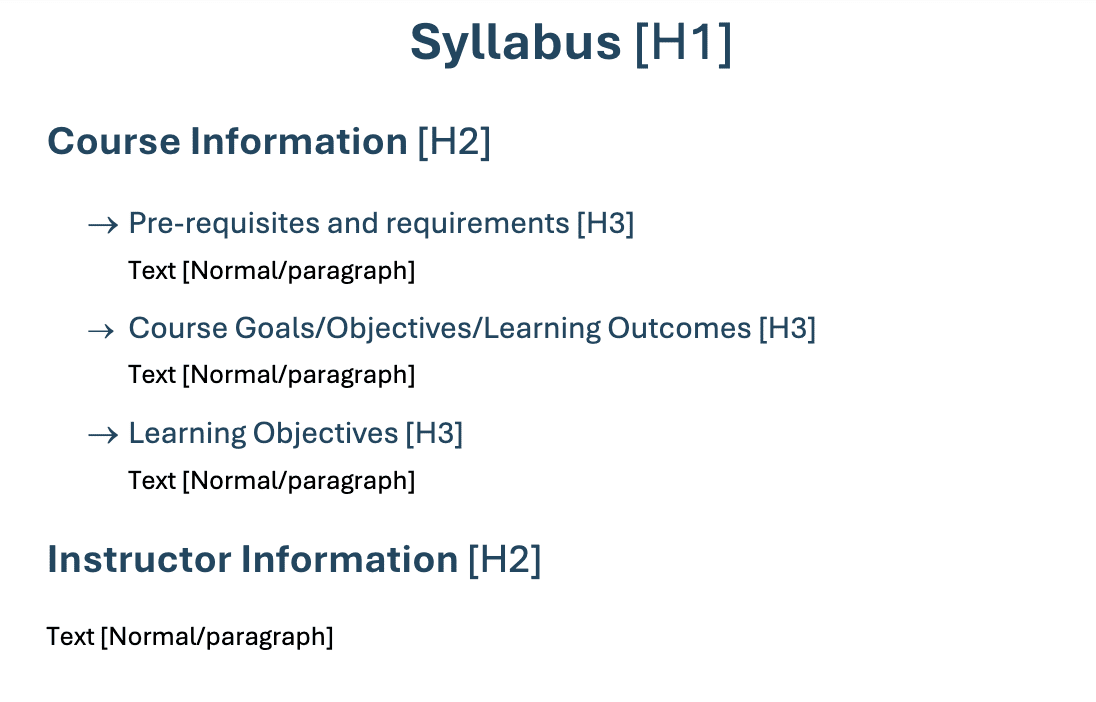
In Word, you can have multiple H1, H2 and H3 headings. Think of H1 as a page’s main title, H2 as chapters, and H3 as subtopics within a chapter. A page using the proper hierarchy will allow all users to jump to different headings to find the section they want.
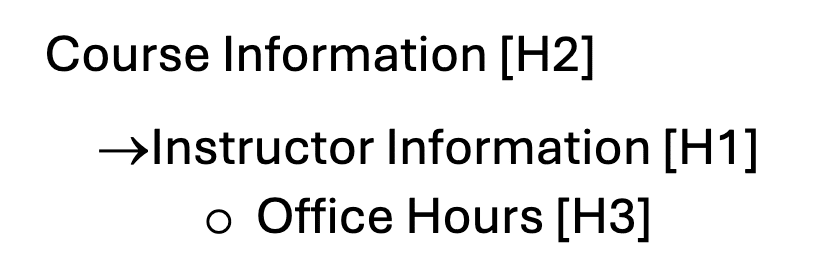
Be sure to follow a logical hierarchal structure. For example, don’t start with H2, then nest H1 within H2. This disrupts the reading order.
The image below is an example of how not to use headings.
A title is not part of the heading hierarchy. A Word document title tells the user what document they are viewing. Headings help the user navigate through the content.
You can apply a Title to a Word doc by going to File > Properties > Summary.
This is an example of how to use headings correctly.
This principle also applies to web-based course content. See Accessibility in Brightspace for more information.
Resources
Microsoft’s Use built-in title, subtitle, and heading styles (for Word documents) Select the tabs at the top of the page to see instructions for the desired platform (Windows, macOS, Office for iOS, Office for Android, Web)
Headings | Elearning Accessibility Tips and Tricks (4:44) (Lindsay O’Neill, MLIS, MEd, 2022)
Guidelines for other word processing platforms
- Headings in Google Docs (Highline College, 2024)
- Create accessible documents using Apple Pages and Keynote (London College of Communication, 2023)