


How to Create a Discussion Forum
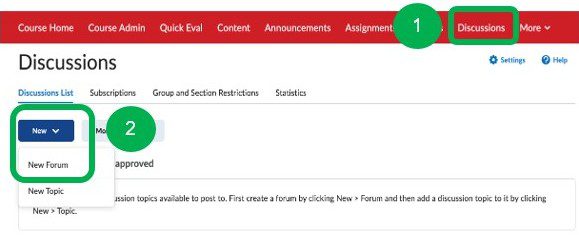
1. In your Brightspace course, click on Discussions in the Navigation Bar.
2. Click New and select New Forum from the drop-down menu.
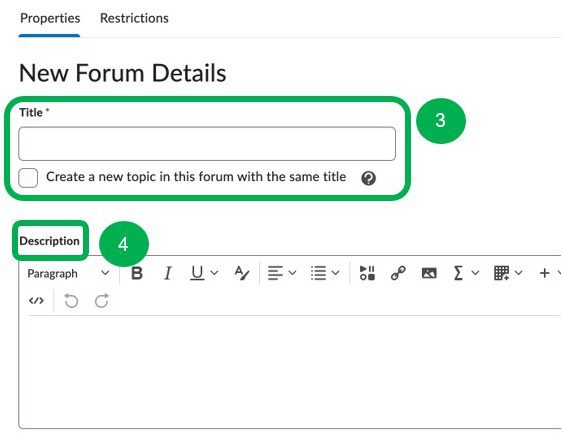
3. Enter a title and click Create a new topic in this forum with the same title.
4. Enter a description or instructions.
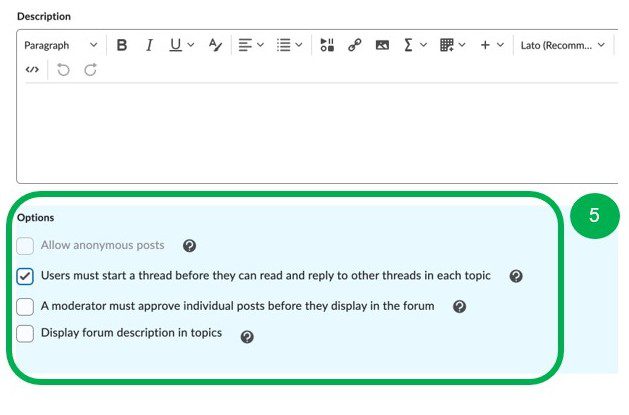
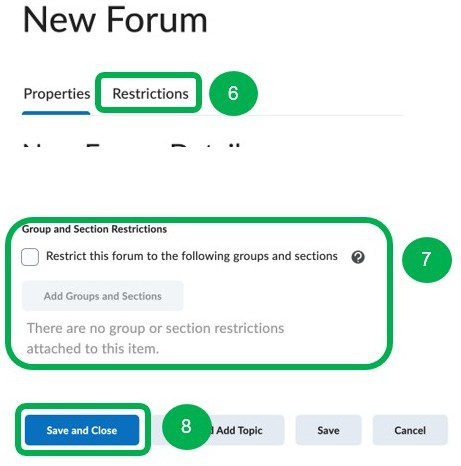
6. Click on the Restrictions tab to set Availability dates. Note: You can skip steps 6-7 if you prefer to set restrictions on individual topics.
7. Set additional restrictions as desired.
8. Click Save and Close
Create a New Topic
If you didn’t select Create a new topic when you created the Forum, create one now:
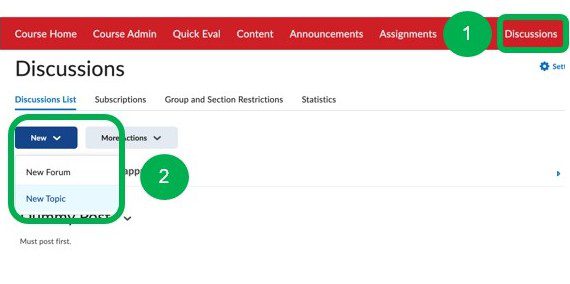
1. Click on Discussions in the Navigation Bar.
2. Click New then select New Topic from the drop-down menu.
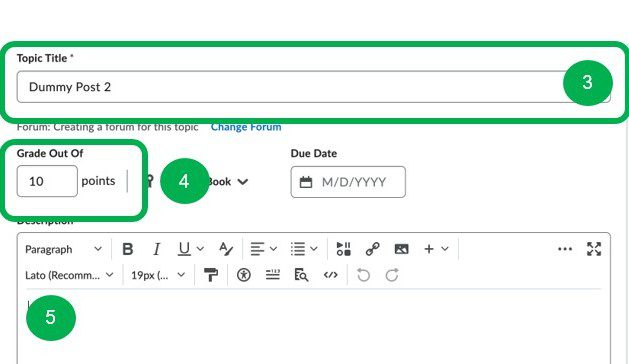
3. Enter a topic title
4. Enter Grade points and add it to the Grade Book
5. Enter a description/instructions or prompt
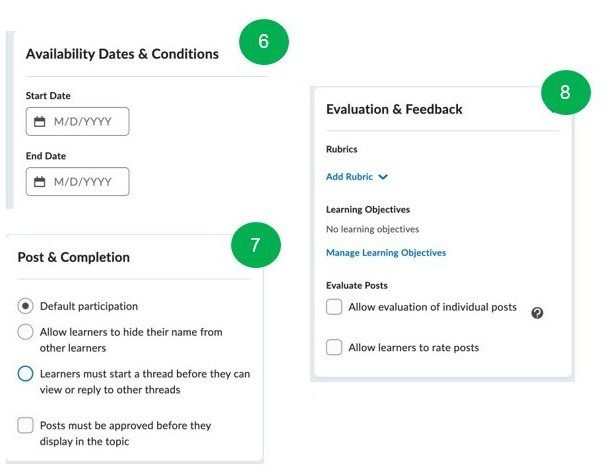
6. Set availability dates
7. Select Post & Completion options
8. Select Evaluation & Feedback options
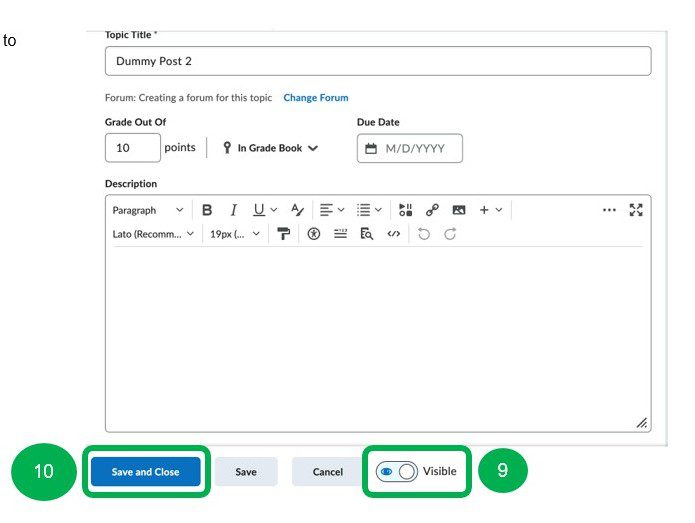
9. Click the toggle button to make the topic Visible
10. Click Save and Close
Add topic to the Content Module
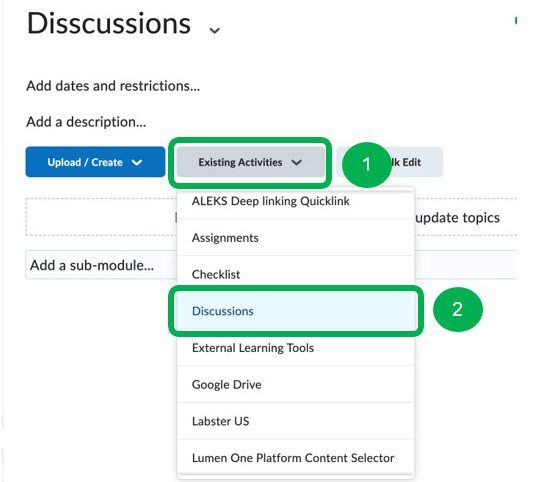
1. Go to a Content Module and click on the Existing Activities dropdown menu
2. Click on Discussions
3. Select a Forum
4. Select a Topic
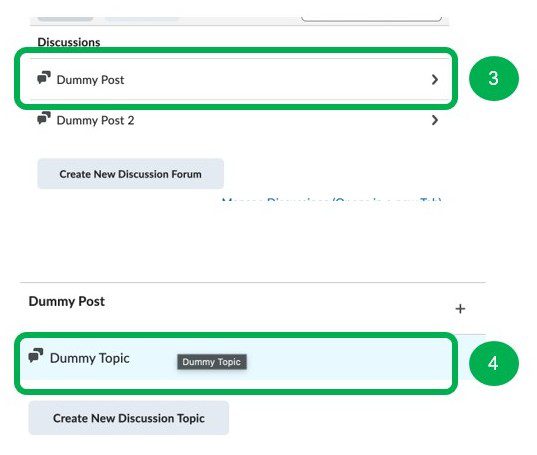
The Discussion has been added to the Content Module and is visible to learners. To hide it from learners:
1. Click on the chevron (arrow) next to the Discussion name
2. Select Hide from Users
