
How to set up a Quiz
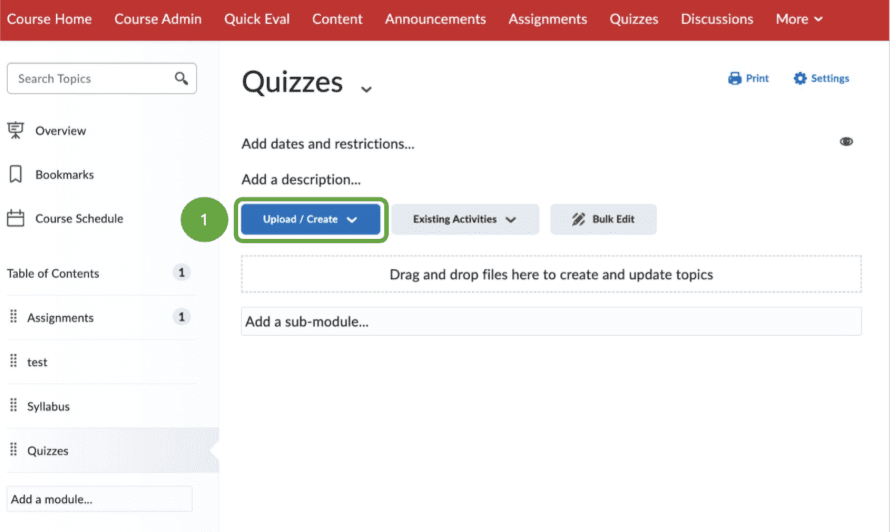
1. In your Brightspace course, go to a content module and click on Upload/Create.
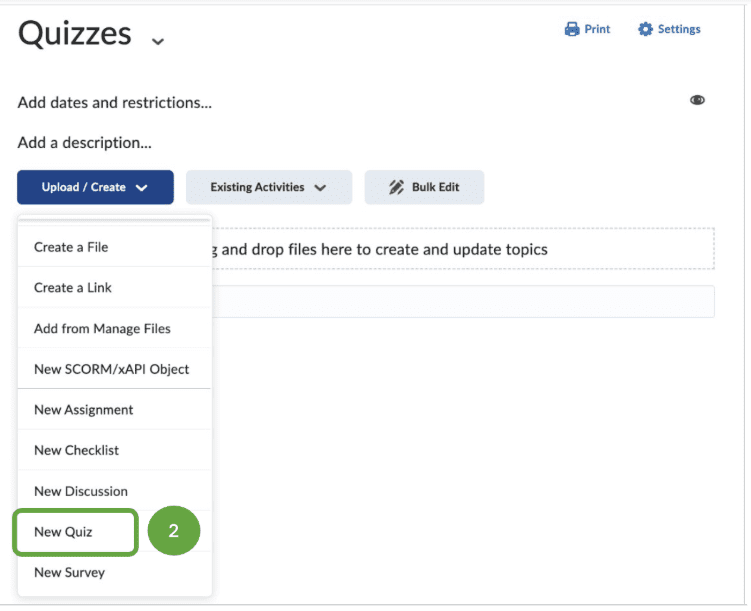
2. Click on New Quiz.
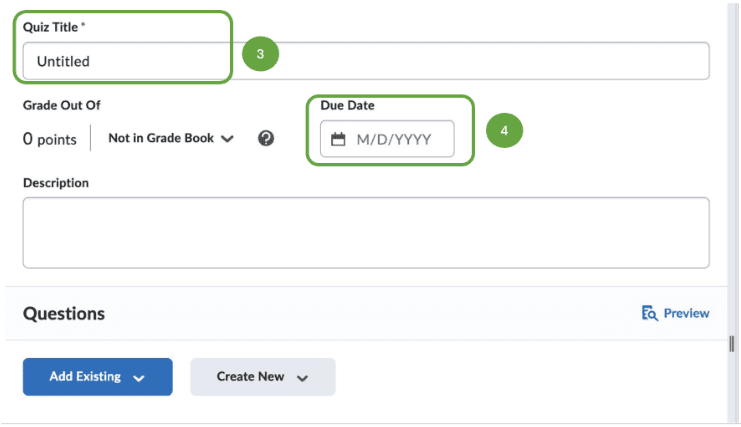
3. Enter a Quiz Title.
4. Enter a due date.
5. To enter Grade Points, you must first add the quiz to the Grade Book. Click on the Not in Grade Book drop-down menu and select Add to Grade Book.
6. Then enter Points under Grade Out Of.


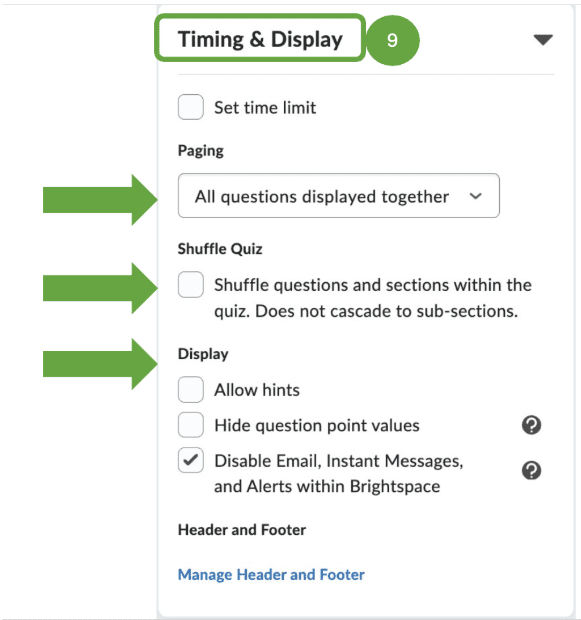

11. Under Evaluation & Feedback, select desired options

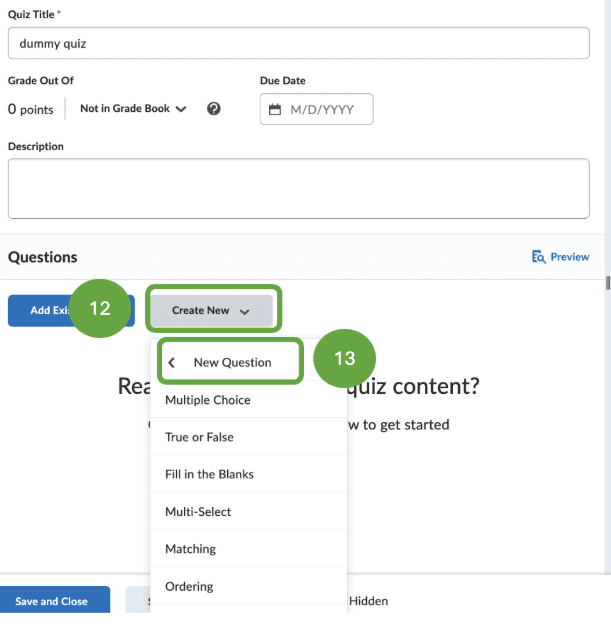
12. To add questions, click on Create New.
13. Select a question type. In this example, we are creating a Multiple Choice question.
14. Add answers. The default setting is four answers but you can add more, or delete one if you want only three answers.
15. To identify the correct answer, click on the circle to the left of it.
16. Enter points for each question


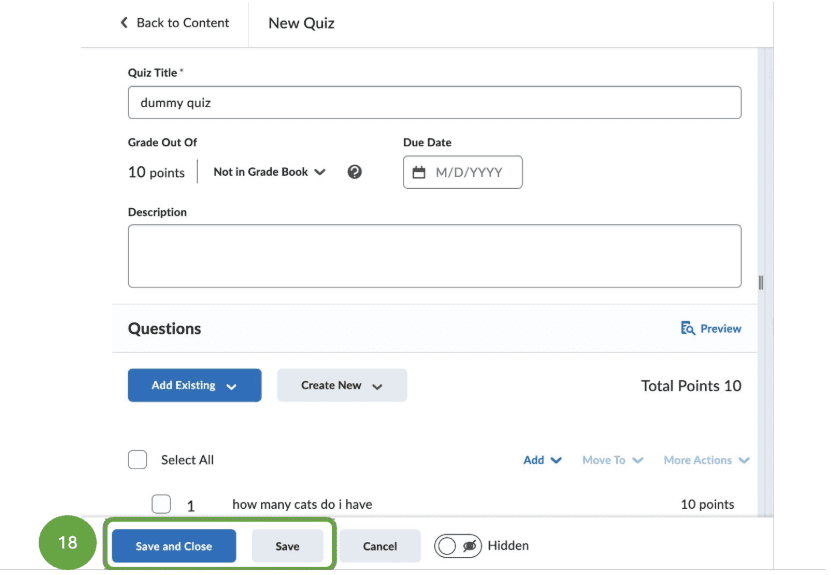
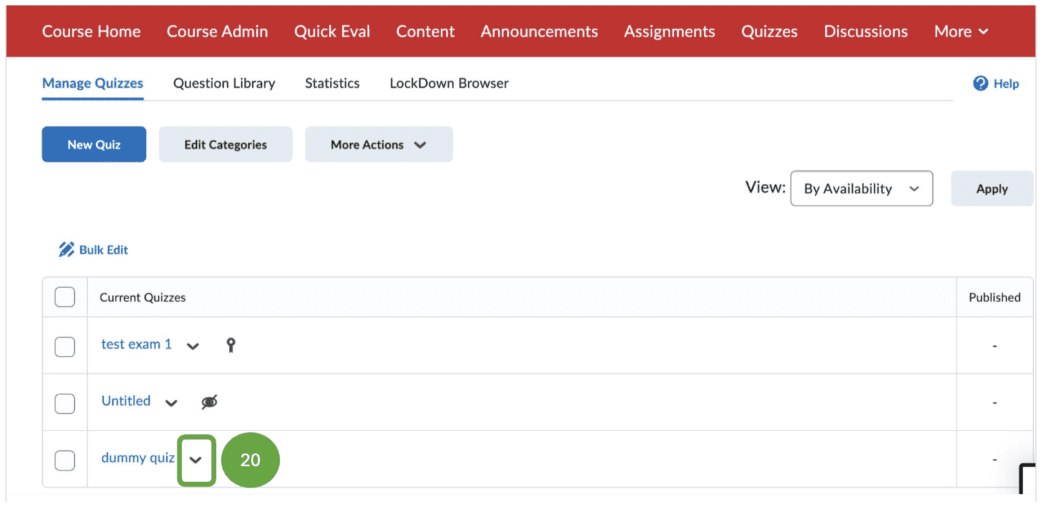
19. To edit a Quiz, click on Quizzes in the Navigation Bar.