
How to create a Practice Site

1. Log in at brightspace.qc.cuny.edu and enter your CUNY credentials.

2. On the right hand side, you should see a Practice Site Widget.

CUNY Brightspace Homepage with Practice Site widget on the right.

3. Click on the chevron next to Practice Sites, then click on Expand this widget.

Click on the chevron next to Practice Sites, then click on Expand this widget.</p>
<p>

4. Click on Get Started.

After clicking on Expand this widget.  Click on Get Started.</p>
<p>

5. Enter a Course Name. (Note: You cannot change the name of the practice site after it has been created.) and under Choose a Type, select CUNY Practice Site, then click Next.

to enter a course name with the note, “You cannot change the name of the practice site after it has been created.” Below the field, the option “CUNY Practice Site” is selected under Choose a Type, and a Next button appears at the bottom.

6. The site will show up under My Courses on the left of your CUNY Brightspace home page.”
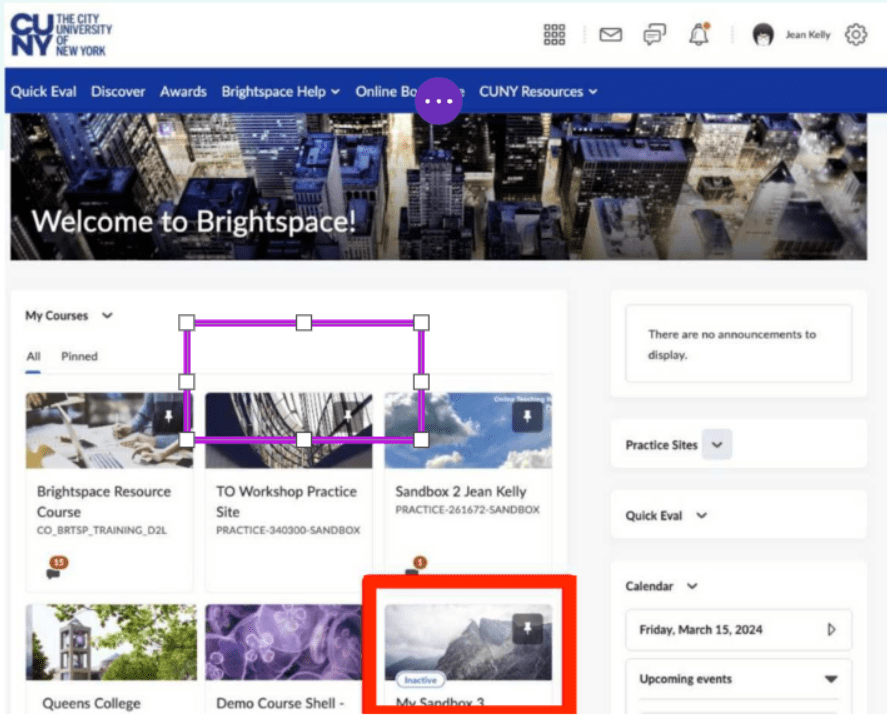
the newly created site will appear under “My Courses” on the left side of the CUNY Brightspace home page.