


Teaching Tip: Accessible Headings
In April 2024, the U.S. Department of Justice issued new ADA Title II regulations requiring public universities to ensure that actively used digital content is accessible. These regulations apply directly to course materials such as websites, documents, videos, media, and other web-based instructional resources housed in Brightspace and otherwise used in teaching. The DOJ deadline for compliance with the federal website and services accessibility requirement is April 26, 2027. However, the New York state digital accessibility requirements deadline is still in effect for January 1, 2027.
Why is accessibility important?
All students, regardless of disability or assistive technology use, should have equal access to content in your Brightspace course or website. Among other requirements, documents and webpages should follow a logical structure; images should have descriptions (alt text); and video and audio files should have closed captions.
The work to make your course content can be overwhelming, especially if you’re new to the process. CETLL wants to help by presenting bite-sized how-to’s each month.
This month we will focus on Headings.
Start by reviewing your syllabus and make sure it has the proper heading structure. Headings and subheadings help the reader understand the organization of the text and navigate to specific content. To enable screen readers to convey organizational information to a blind, visually impaired, or other user, it is essential to use the built-in heading styles rather than making text bolder or larger.
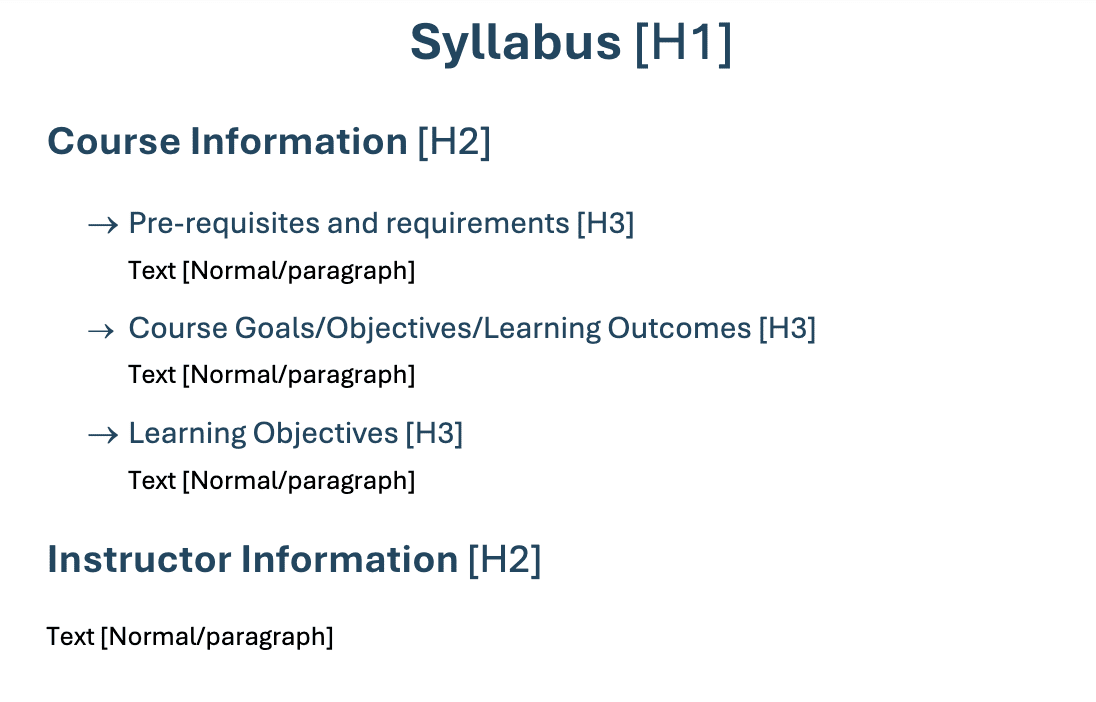
In Word, you can have multiple H1, H2, and H3 headings. Think of H1 as a page’s main title, H2 as chapters, and H3 as subtopics within a chapter. A page using the proper hierarchy will allow all users to jump to different headings to find the section they want.
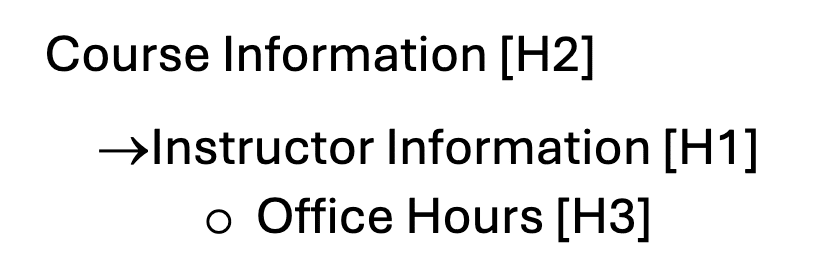
Be sure to follow a logical hierarchal structure. For example, don’t start with H2, then nest H1 within H2. This disrupts the reading order.
This is an example of how not to use headings:
This is an example of how to use headings correctly:
For more information on using Word headings, go to Headings.
You can also download an accessible syllabus template which is pre-formatted with appropriate heading styles.
For more resources on accessibility, visit Make Your Course Content Accessible.
CUNY Digital Accessibility Initiative
Faculty and staff are encouraged to participate in “Designing for All: Digital Accessibility in Practice,” a new self-paced Brightspace course for faculty and staff. It’s part of the CUNY Digital Accessibility Initiative, a university-wide effort to build digital accessibility knowledge and skills across CUNY.
Participation is optional, but whether you’re just getting started with accessibility or looking to strengthen your existing skills, the Designing for All course provides practical, hands-on guidance you can apply immediately to your teaching and everyday work.
To enroll, visit: Designing for All: Digital Accessibility in Practice in Brightspace and if prompted, log in with your CUNY Login account. Alternatively, all CUNY employees can request access to this free professional development opportunity through Brightspace from their campus LMS Administrator.
Read more about the CUNY Digital Accessibility Initiative.
If you need assistance, please join us during our virtual Drop-in Hours on Tuesdays and Wednesdays from 2 pm to 4 pm on Zoom
If that’s not convenient, email us at CTLOnline@qc.cuny.edu to make other arrangements.