


Accessing the Gradebook
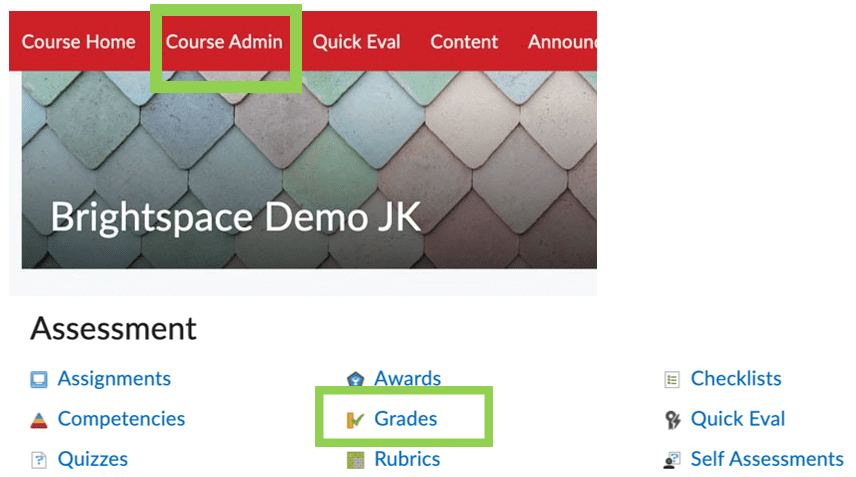
- Look for Grades in your course navigation bar. If you don’t see it, check under More.

2. If it’s not under More, go to Course Admin. Grades is listed under Assessments.
Set Up Weighted Grades – the quick way
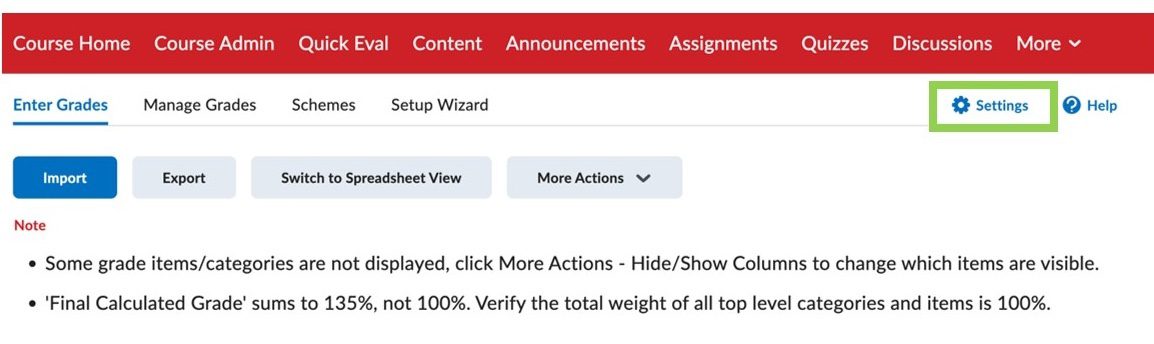
- In Grades, select Settings (the gear icon at the upper right
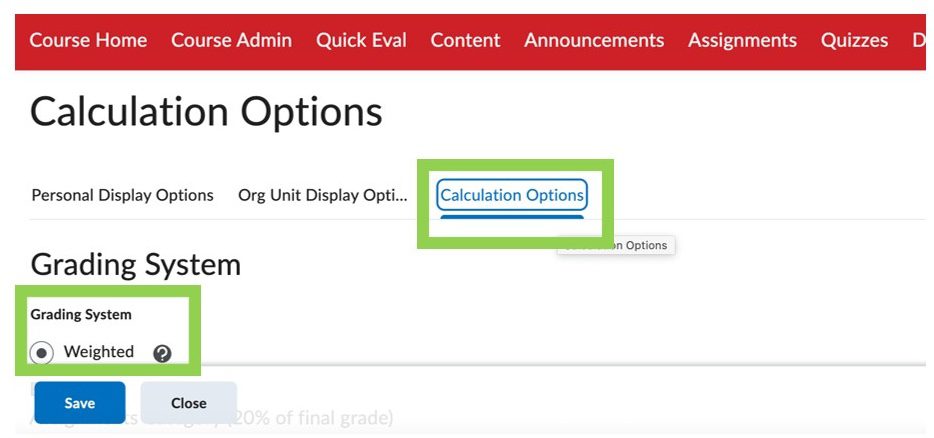
2. Click on the Calculation Options tab and select Weighted, under Grading System.
3. Under Final Grade Released, choose Calculated Final Grade or Adjusted Final Grade
(recommended)
4. Under Grade Calculations – Ungraded Items, Choose Drop ungraded items
(recommended) or Treat ungraded items as 0
5. Click Save

Create Categories
Go to Manage Grades in the Gradebook
- Open the New drop-down menu and select Category

- Enter a Name.
- Enter a percentage for the Weight

4. Select an option under Distribution. Select the third option if you want all items to carry the same weight within category. Brightspace will do the calculations for you.

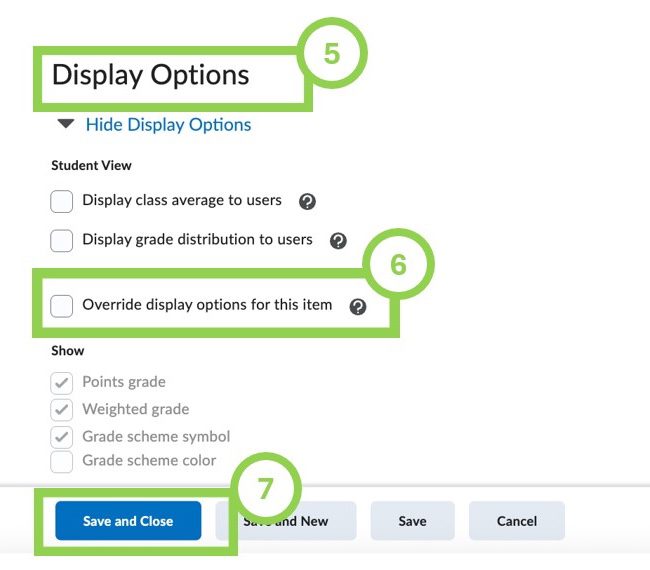
5. Select Display Options. This is where you can control how your students see their grades.
6. Click “Override display options for this item” if you want to change the options under “Show.”
7. Click Save and Close.
Create Grade Items
To add a grade book item for activities (such as Participation) that were not created using the Assignment, Discussion, or Quizzes tool, go to Manage Grades in the Gradebook
- Click on the New drop-down menu and select Item

2. Choose a grade item type.
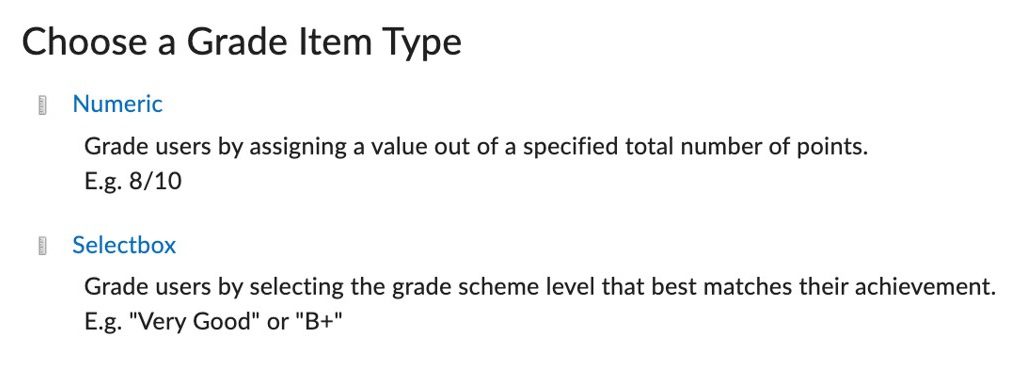
3. Give it a name.
4. Enter a description (optional)
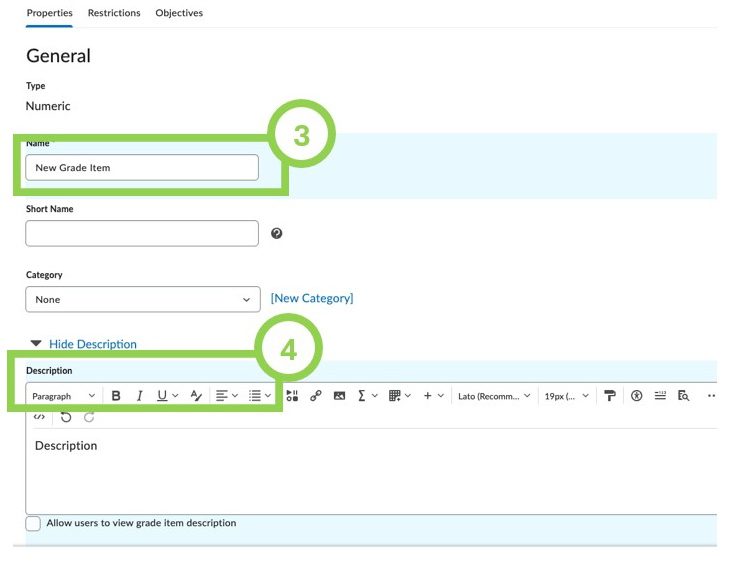
5. Select desired Display Options then click Save and Close.

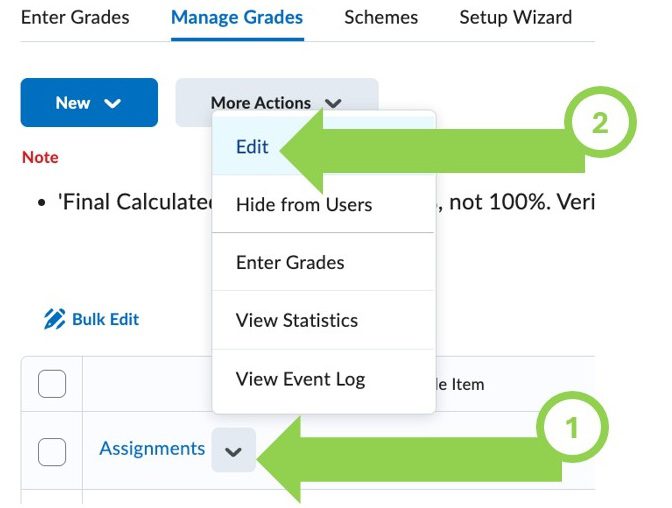
To edit the options of any grade book item or category
- Click on the downward arrow to the right of the item or category name
- Click Edit.
Add Items to Categories
- In the Manage Grades tab, select items to add to a category by clicking thecheckbox to the left of each item.
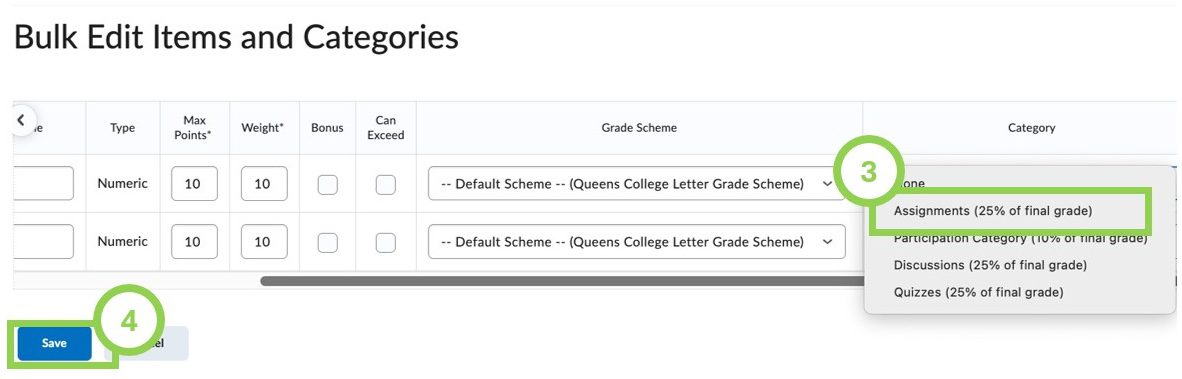
- Click Bulk Edit
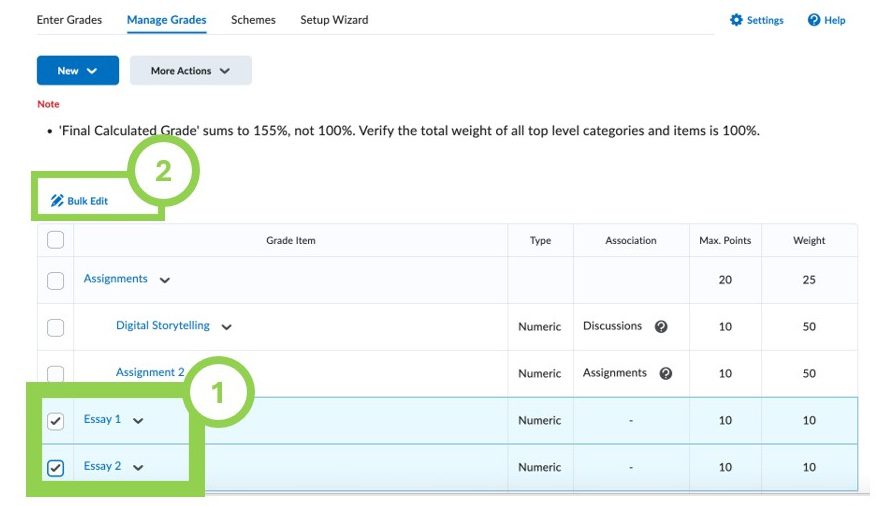
3. Scroll to Category, the last column on the right, click on the drop-down menu to select a Category for each item
4. Click Save.
Resolve error messages in Manage Grades
The final total weight should equal 100%. To resolve the errors in the Manage Grades view, redistribute the weights for categories and/or grade items.
- Select the item or category name to open the pop-up menu.
- Click Edit.
3. Change the Weight under Grading.

4. Click Save and Close.
