


Teaching Tip: Brightspace Ally Course Accessibility
The Ally Report provides an overview of accessibility issues in your Brightspace course. Access it via a widget on the right side of the home page of your course.
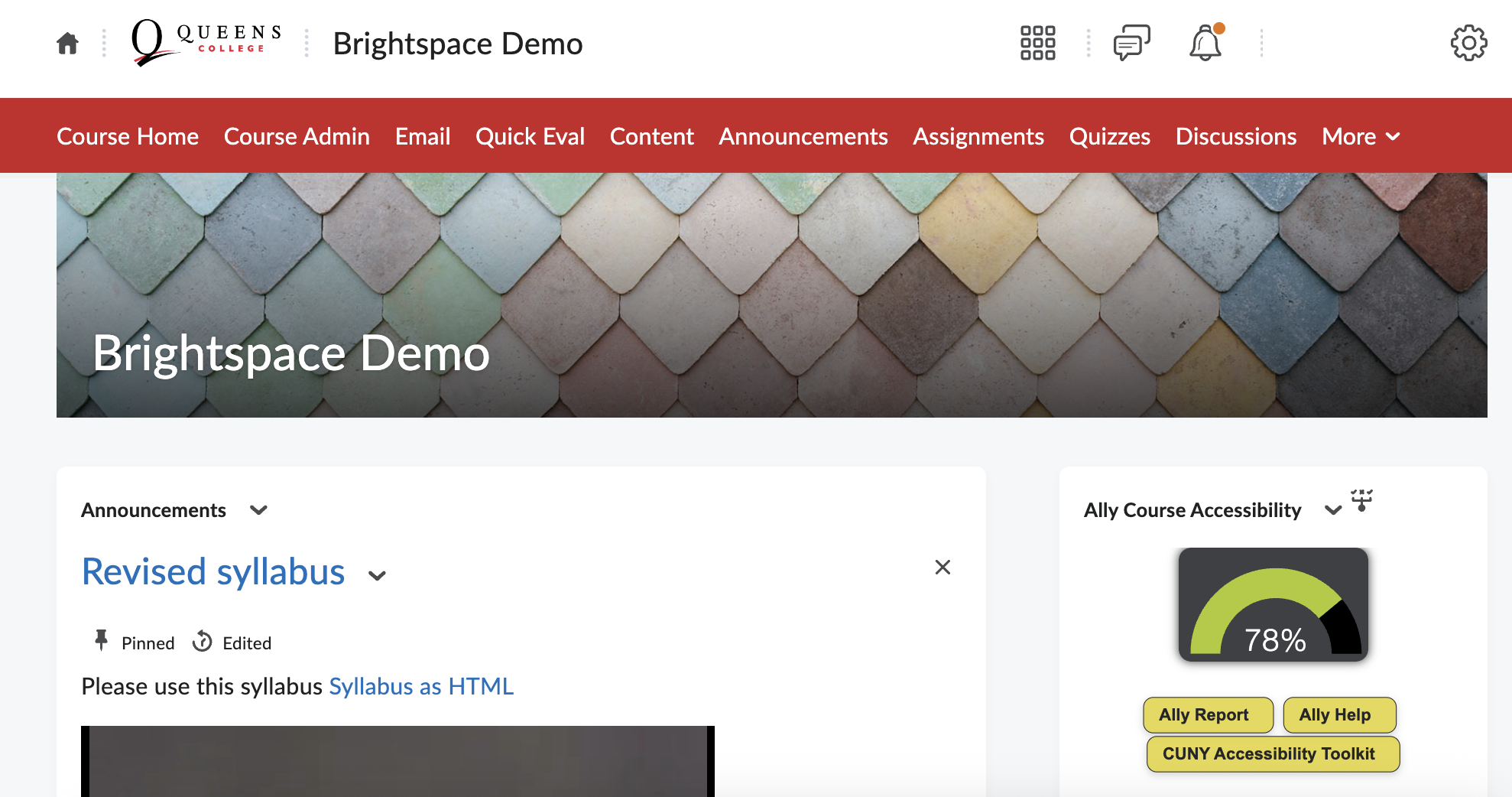
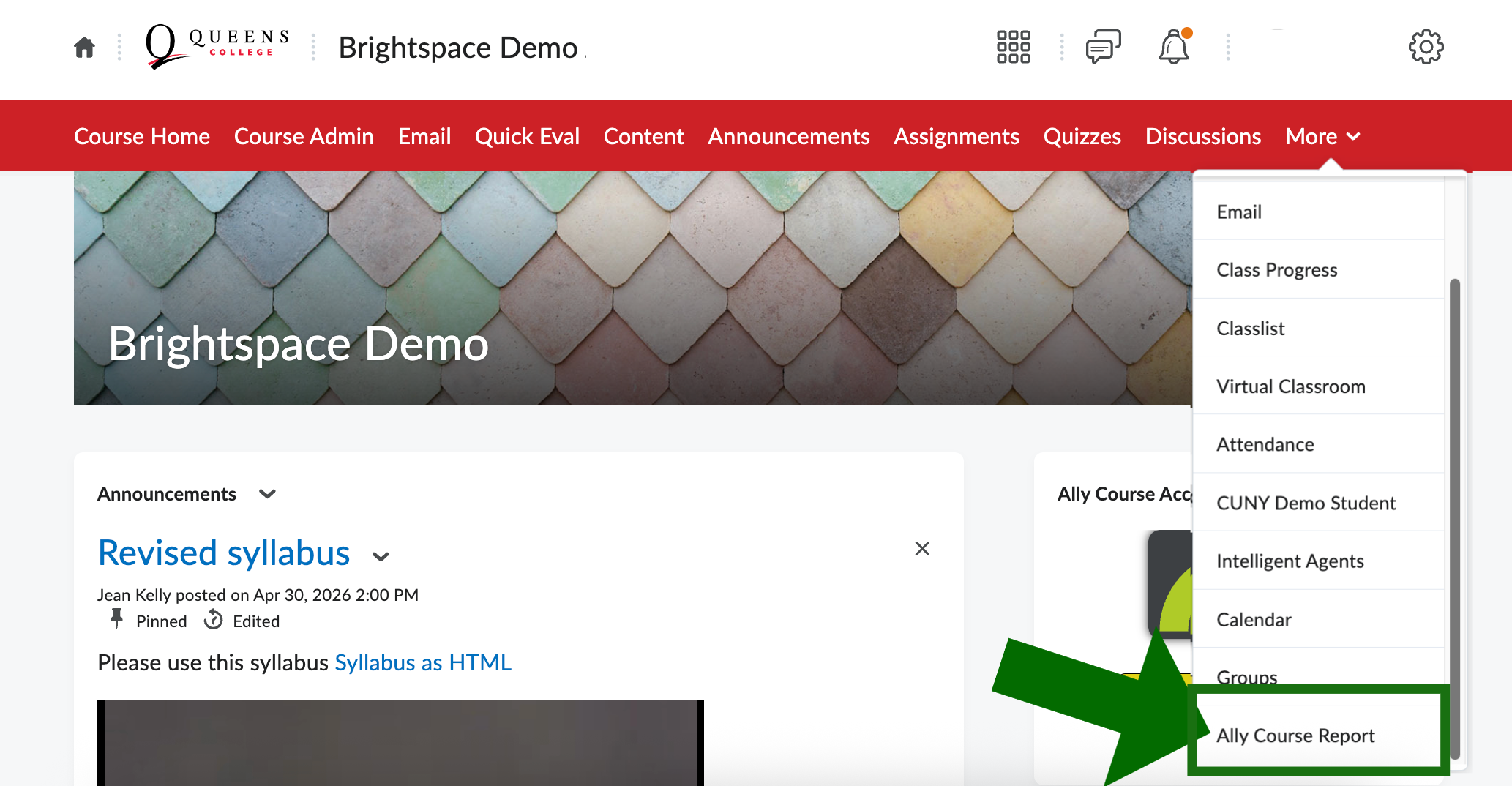
You can also find it under More in the Navigation bar. If it’s not under More, you can add it to your Navigation Bar.
Start fixing issues
The first thing you’ll see is the Course Accessibility Score. On the left is a breakdown of course content organized by type (Word, PDF, HTML, etc.) and listed in order of accessibility issues, from the highest to lowest. The example below shows a 78% score. On the right are start buttons for “Content with the easiest issues to fix” and “Fix the low scoring content.”
From the right side, you can start with Content with the easiest issues to fix or Fix low scoring content. If you chose the latter, the Ally score will rise rapidly.
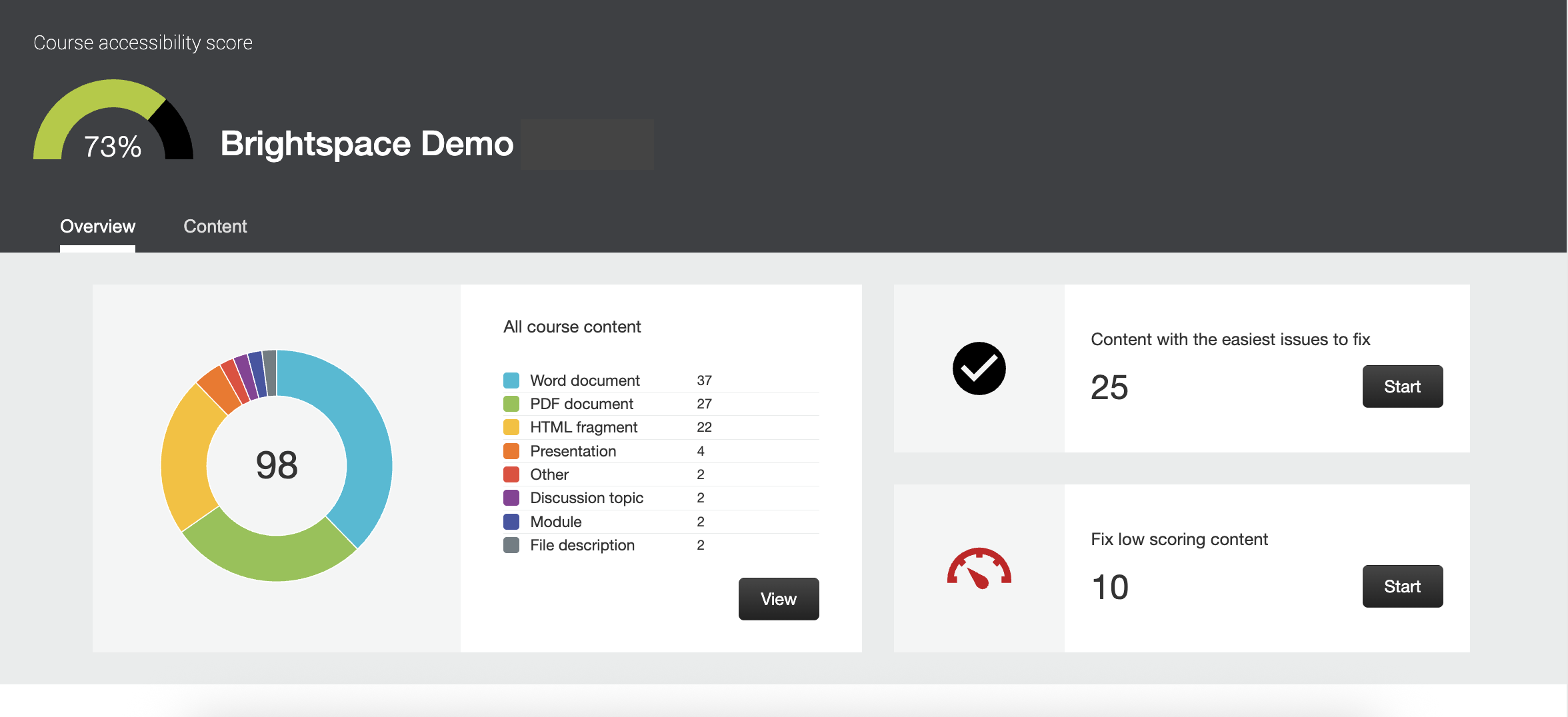
In this example, let’s choose Content with the easiest issues to fix and click on Start. This will take us to the list of documents and other content. We’ll click on one of the list items for details. In this example, we chose a Syllabus.
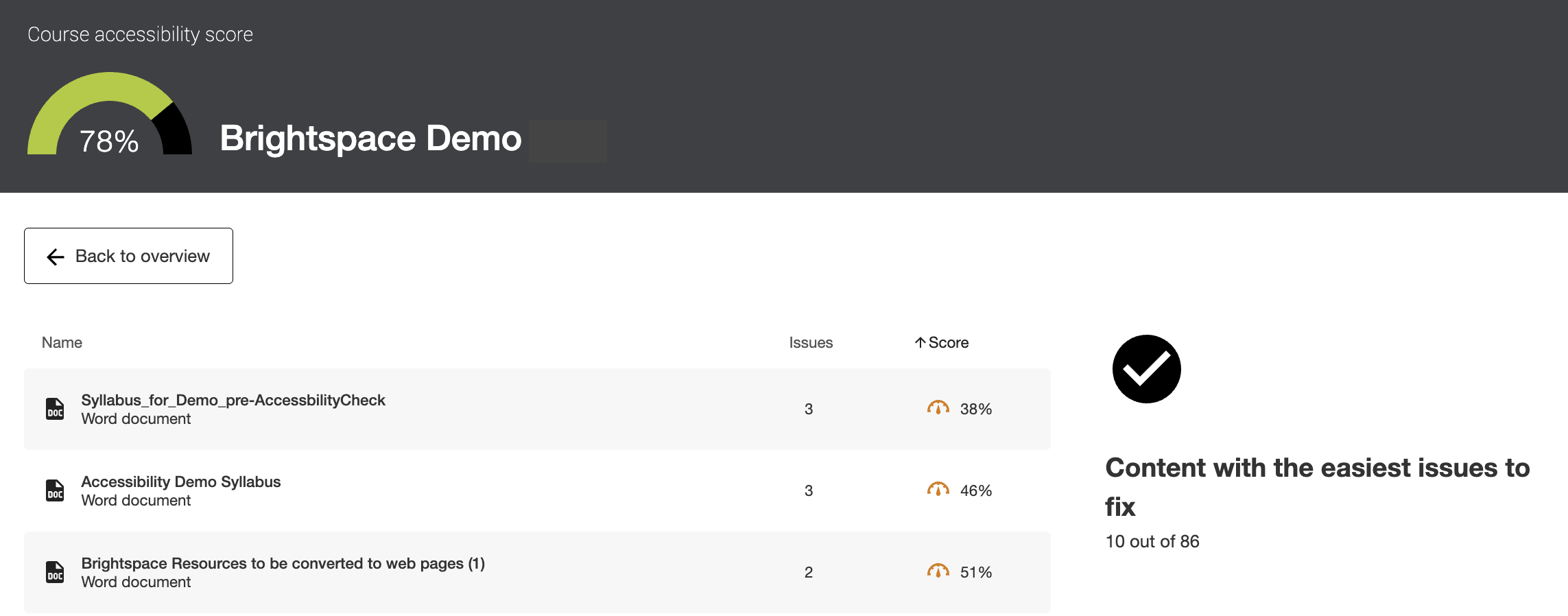
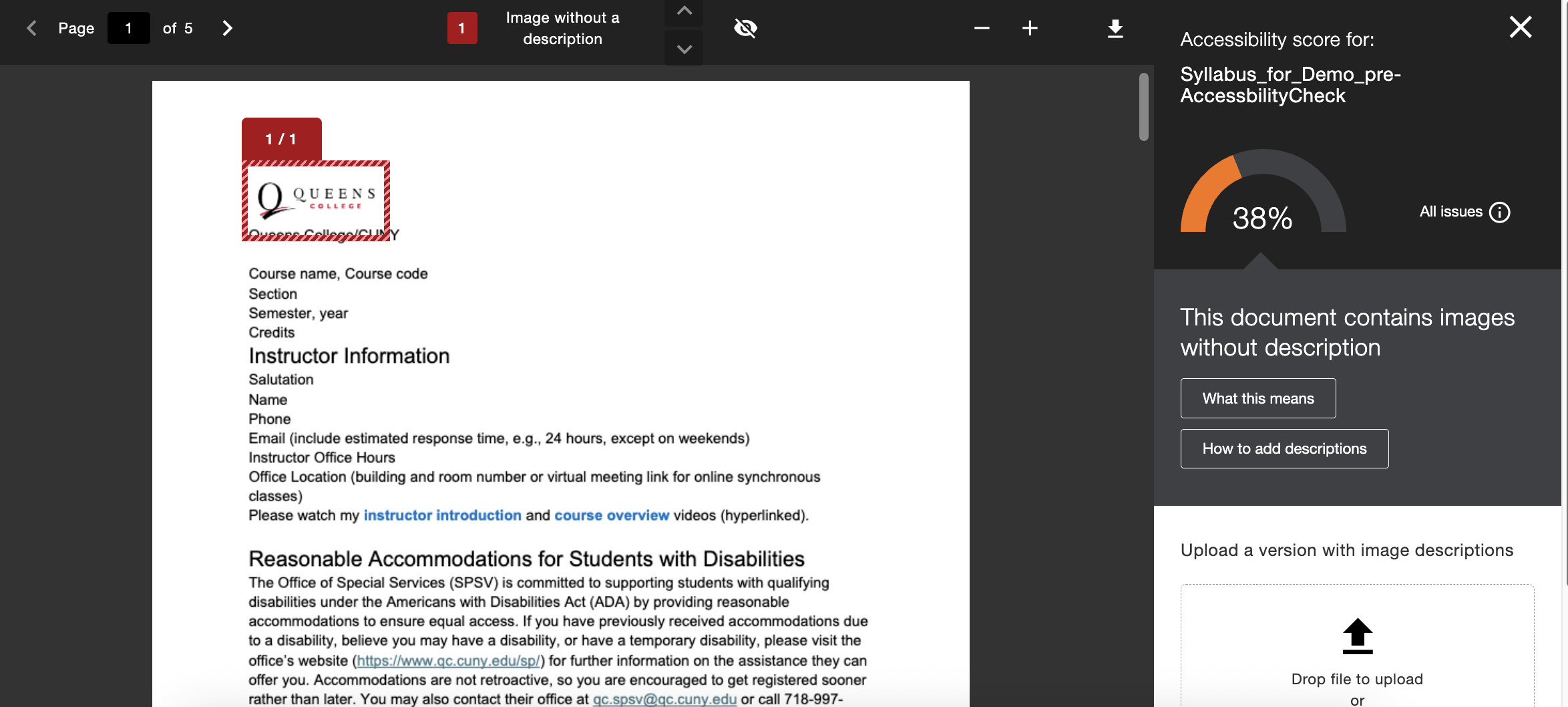
This syllabus has a 38% score. Ally has drawn a red rectangle around the image that is missing a description (alt text). To see additional issues, select All issues on the right.
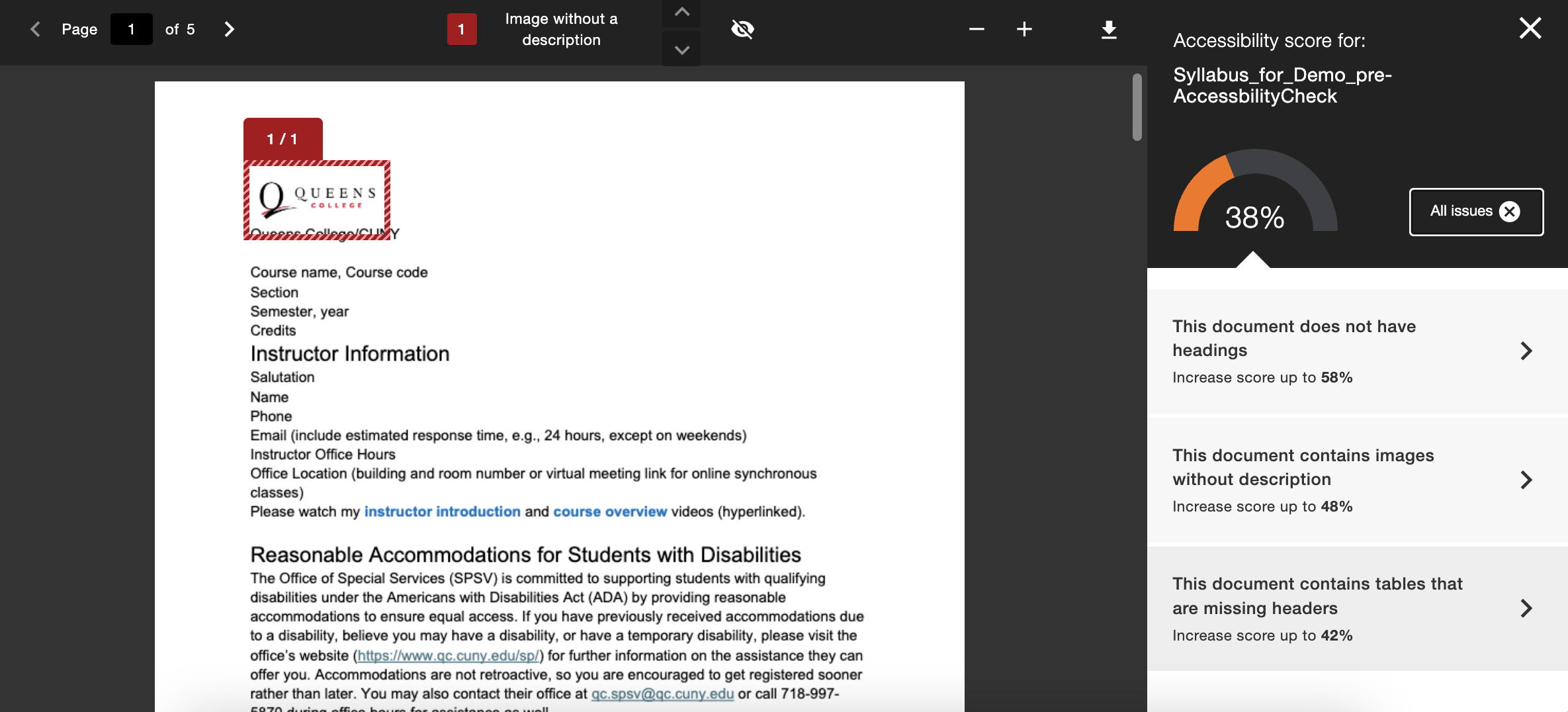
On the lower right, additional issues are listed: the document does not have headings and tables are missing headers. We will fix these issues in the original Word document, then reupload it to Brightspace.
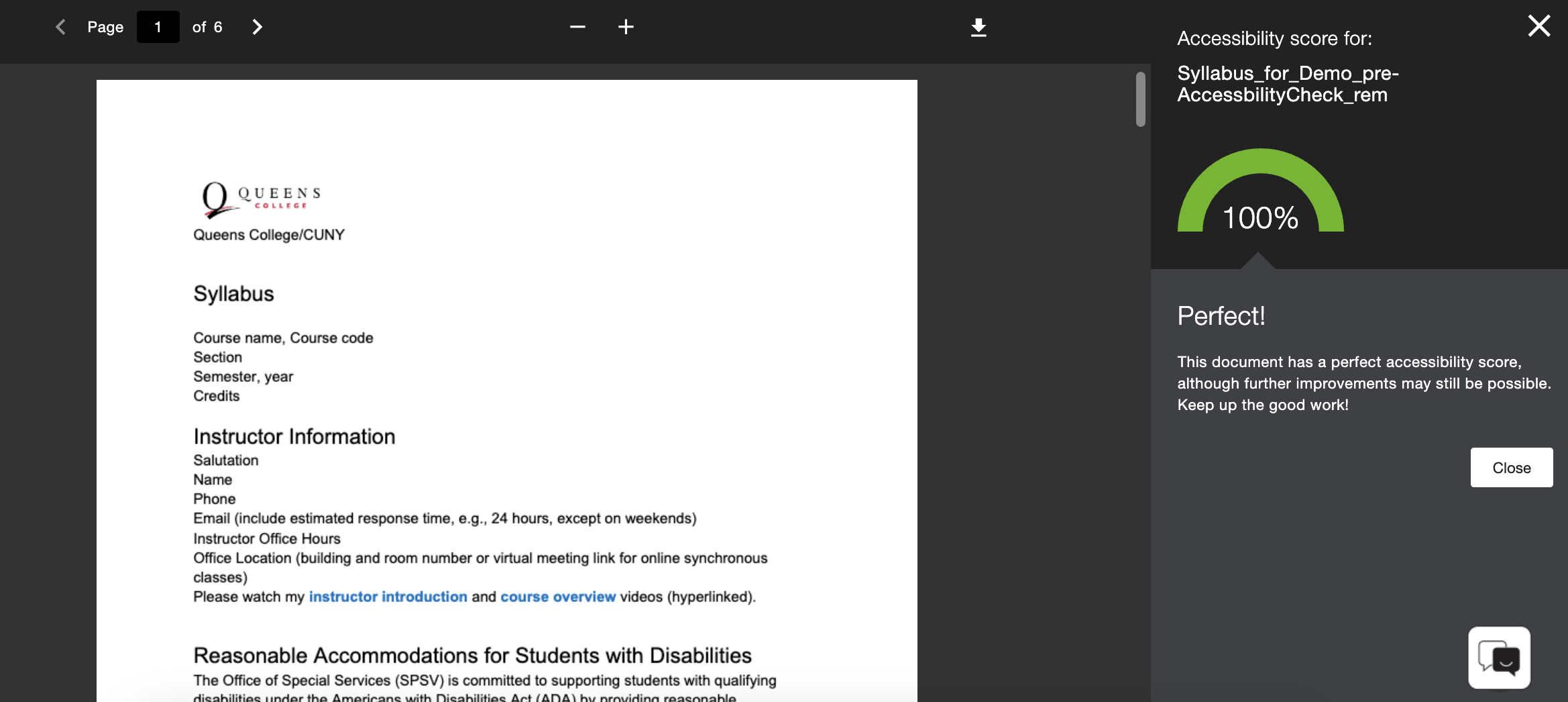
The Word document has been remediated, uploaded to Brightspace, and now has a 100% accessibility score, “although further improvements may still be possible.”
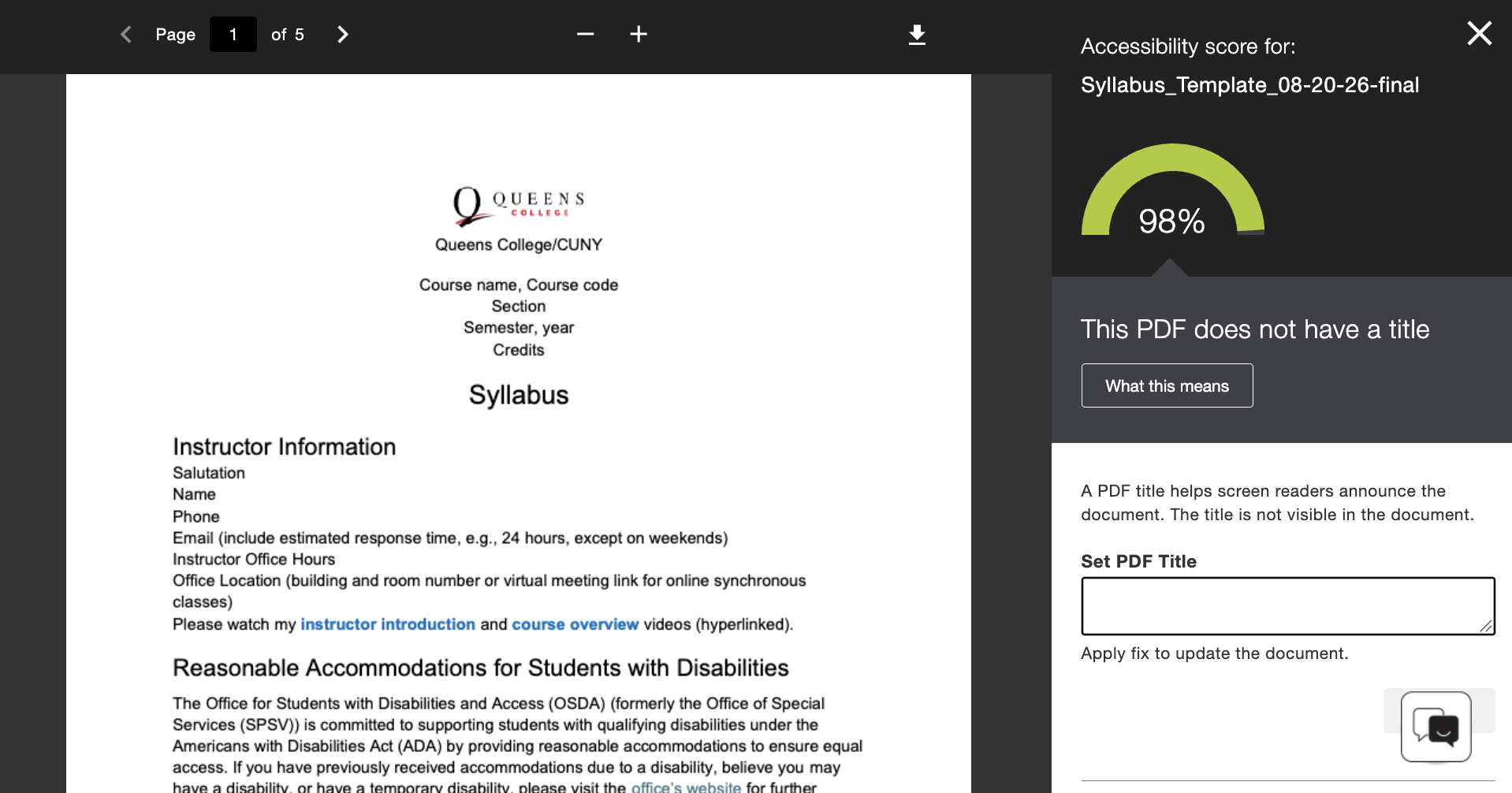
Some issues can be fixed in the Ally interface. This PDF has a 98% score but it does not have a title. The title can be entered in the field labeled Set PDF title.
CUNY Digital Accessibility Initiative
Faculty and staff are encouraged to participate in “Designing for All: Digital Accessibility in Practice,” a new self-paced Brightspace course for faculty and staff. It’s part of the CUNY Digital Accessibility Initiative, a university-wide effort to build digital accessibility knowledge and skills across CUNY.
Participation is optional, but whether you’re just getting started with accessibility or looking to strengthen your existing skills, the Designing for All course provides practical, hands-on guidance you can apply immediately to your teaching and everyday work.
To enroll, visit: Designing for All: Digital Accessibility in Practice in Brightspace and if prompted, log in with your CUNY Login account. Alternatively, all CUNY employees can request access to this free professional development opportunity through Brightspace from their campus LMS Administrator.
Read more about the CUNY Digital Accessibility Initiative.