
How to Create a Demo Student
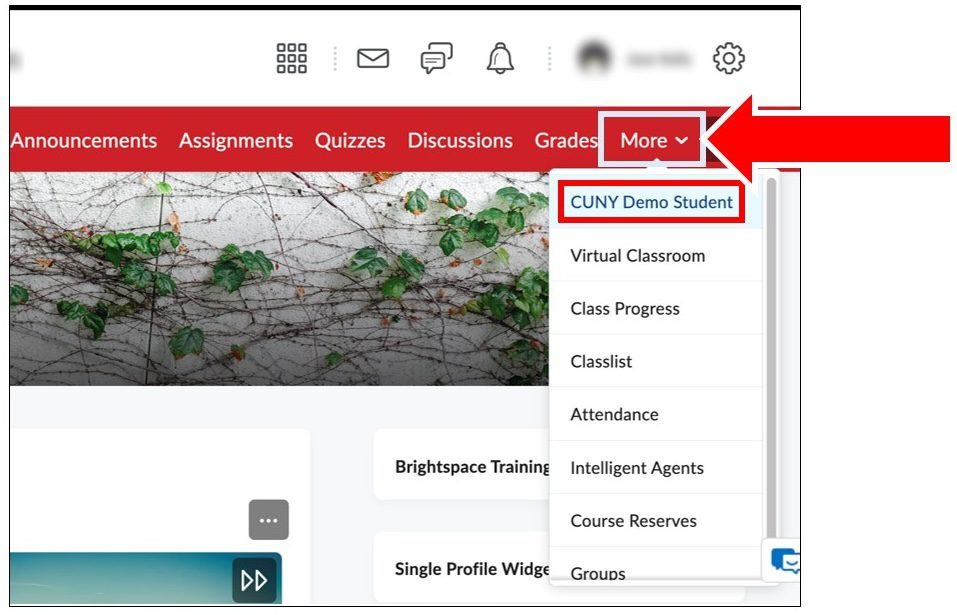
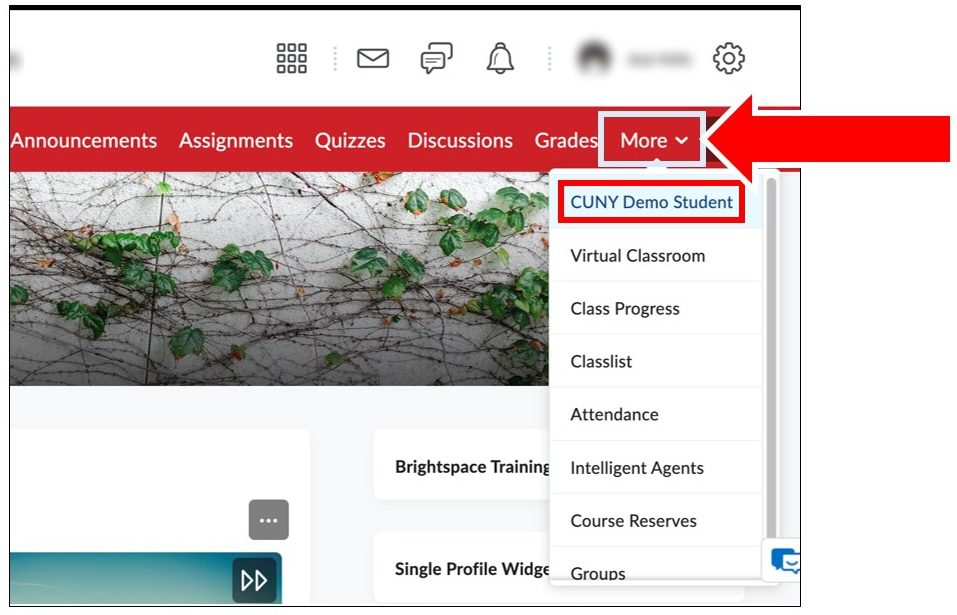
1. Click on More in theNavbar
2. Click on CUNYDemo Student
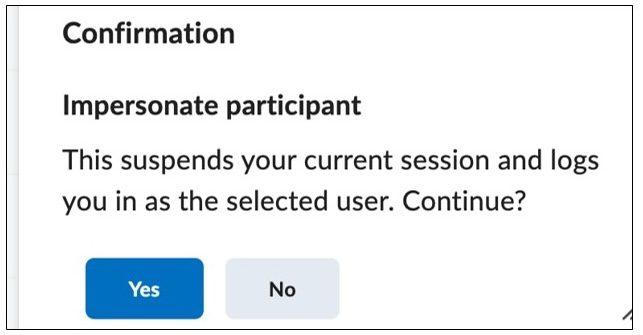
3. Click Yes to confirm your choice.
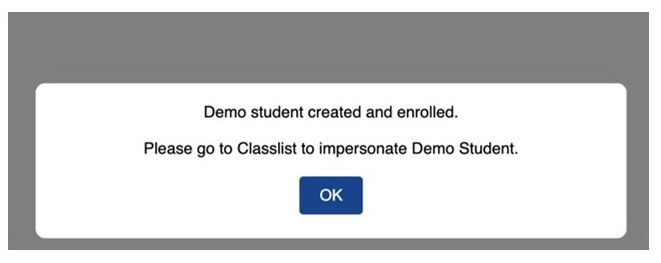
Then you will receive “the Demo student has been created.” Click OK.
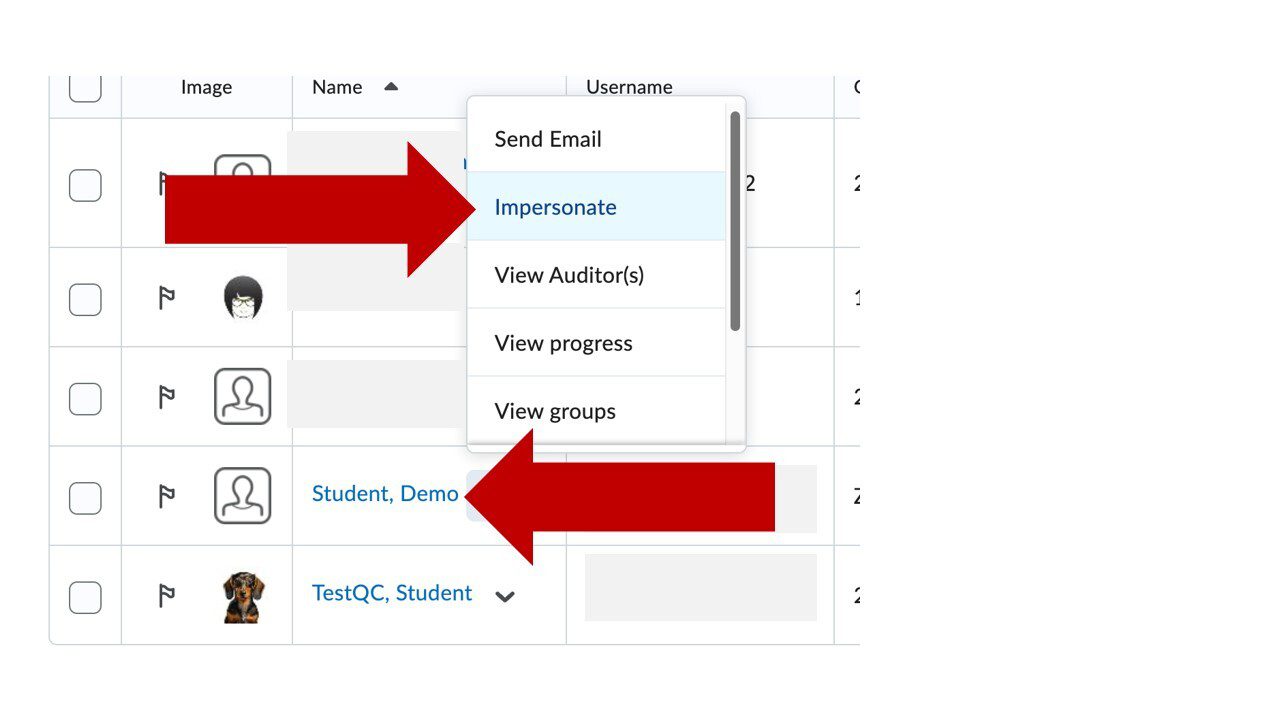
4. Go to Classlist and click on the chevron (arrow)next to Student, Demo.
5. Click on Impersonate in the pop-up menu.
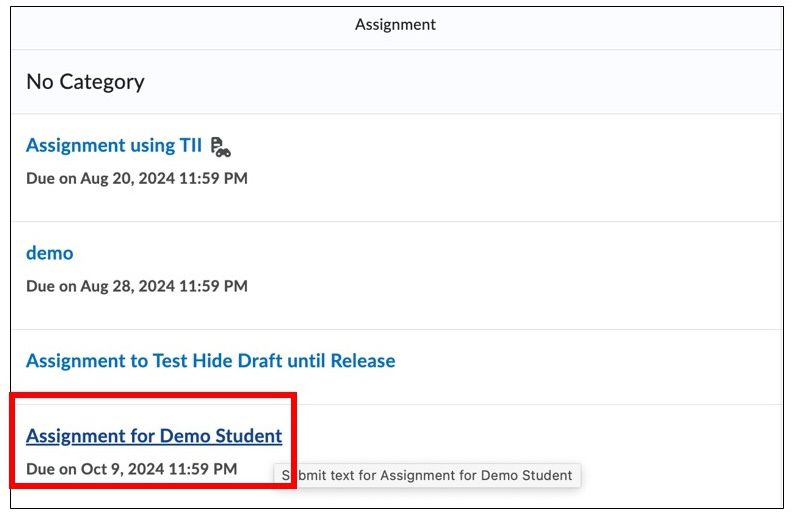
6. Go to Content Module or Assignments and select an assignment to submit.
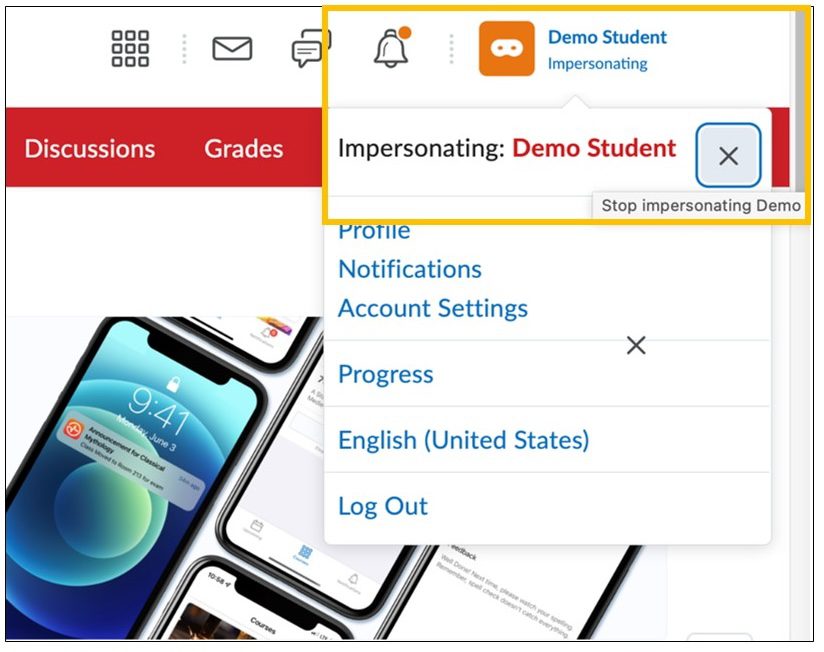
7. After you submit an assignment, return to the Instructor view to grade the assignment: Click on Demo Student at the upper right and click on the X next to Impersonating: DemoStudent
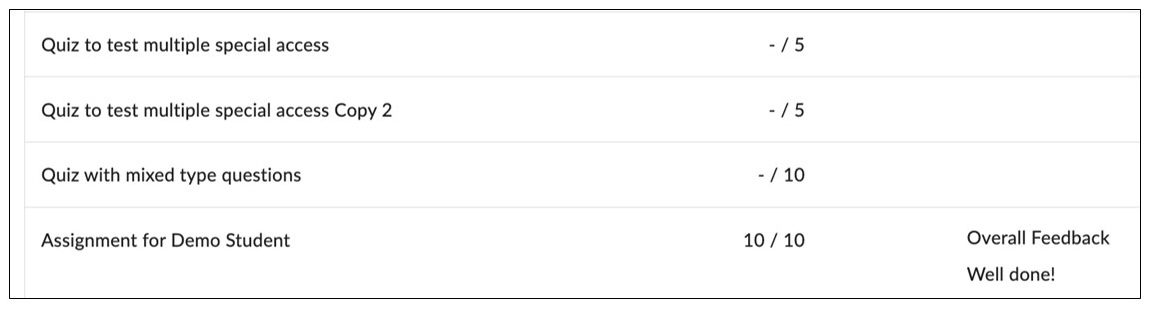
To view your grade as a Demo Student, repeat the steps in steps 1-4 to return to Demo Student view.
Go to the Grade Book to view your grades
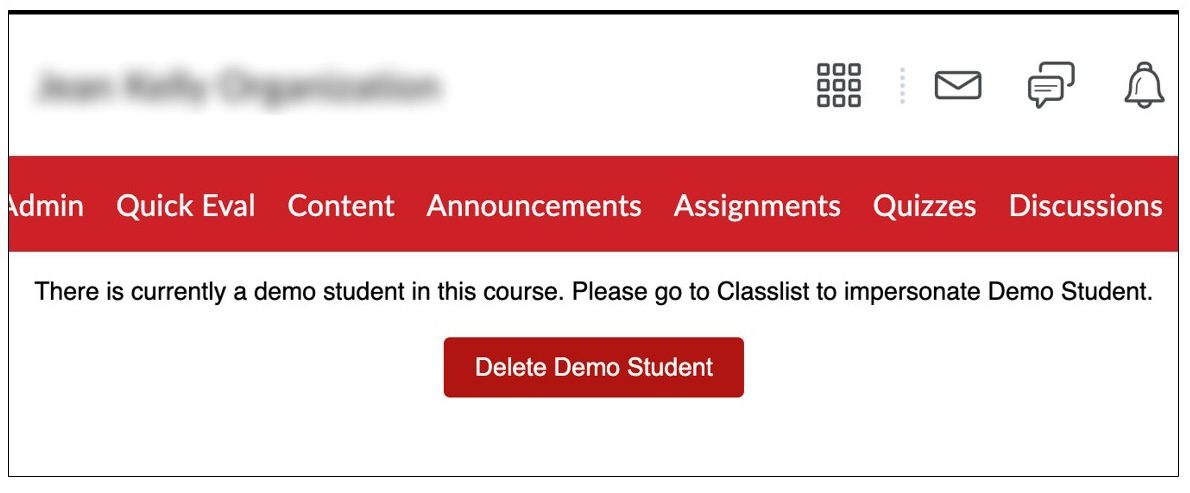
When you’ve finished viewing as Demo Student, you must delete the CUNY Demo Student.
8. Click on Demo Student at the upper right and click on the X next to Impersonating: Demo Student
9. Click on More in the Navbar
10. Click on CUNY Demo Student.
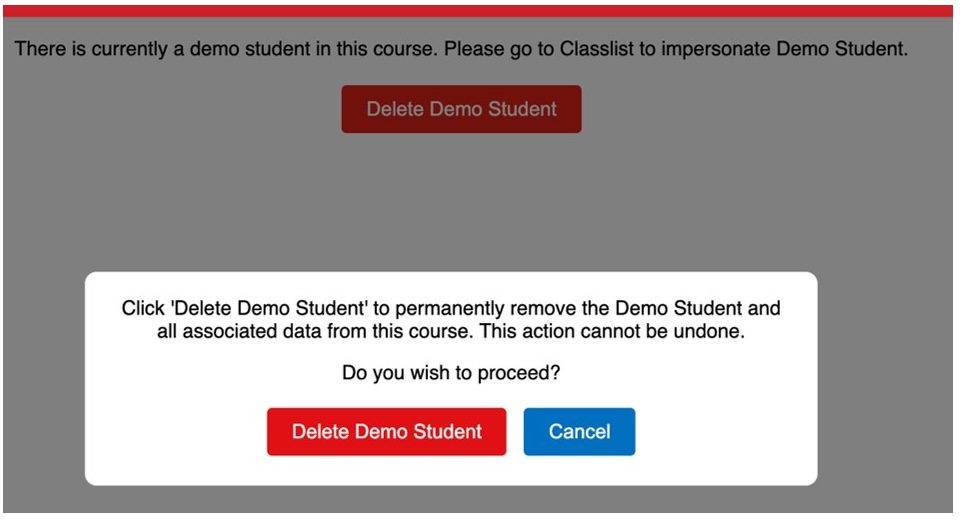
Click on the button “Delete Demo Student.”
Then, click on Delete Demo Student to confirm your choice.