
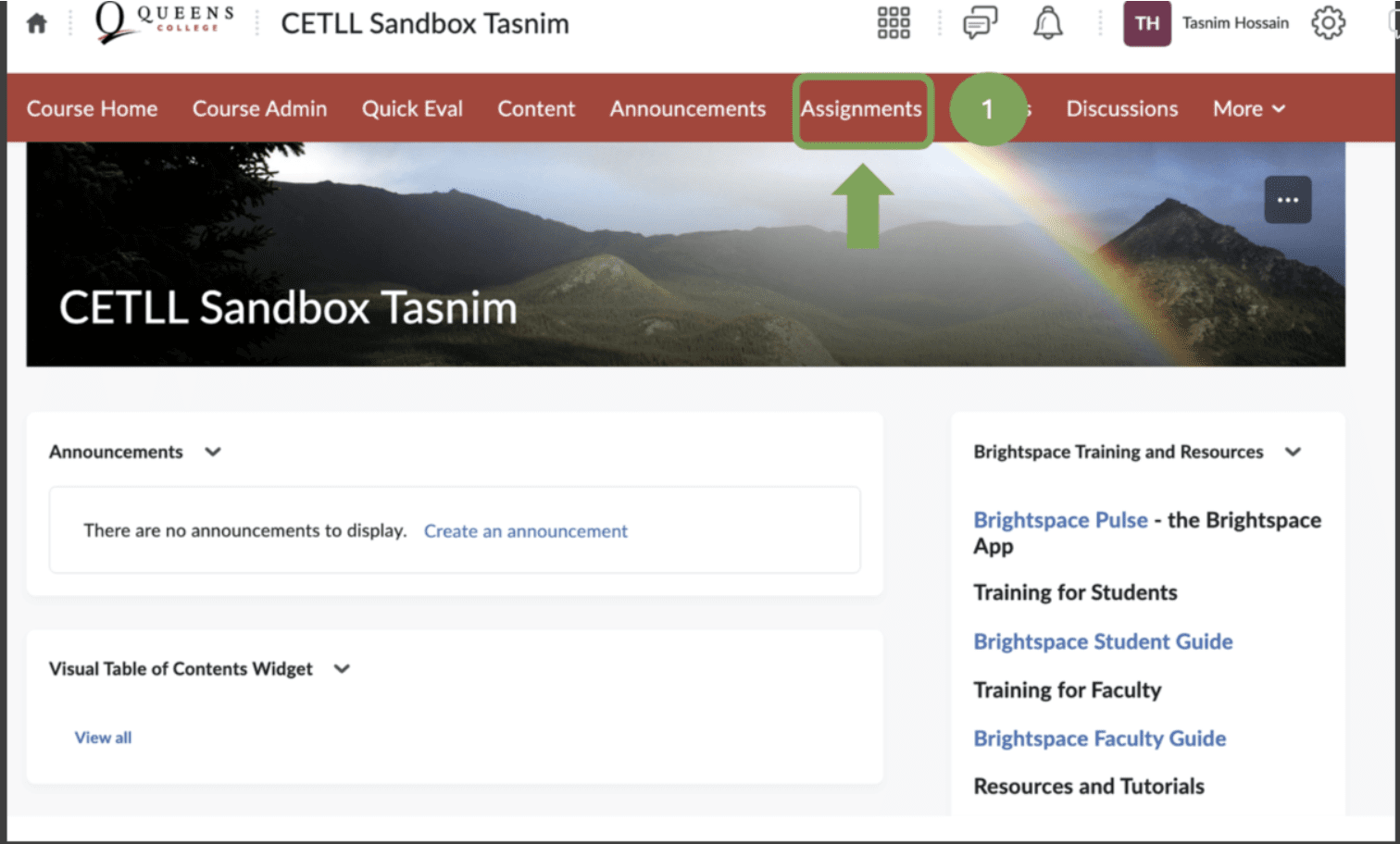
Brightspace Assignment
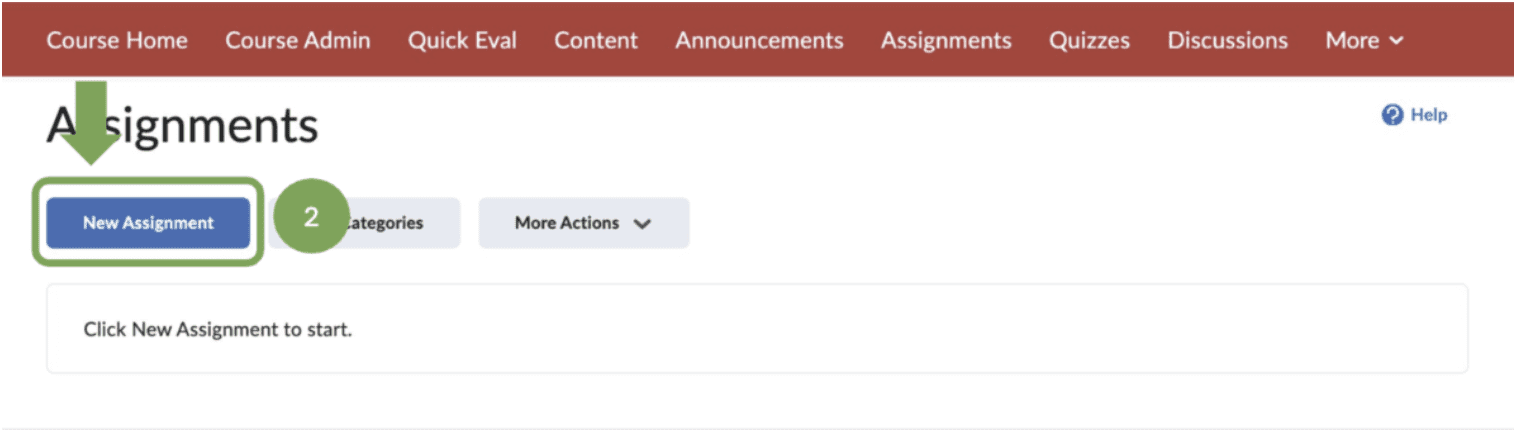
3. Enter a Name
4. Enter Grade Out of
5. Be sure to select In Grade Book (next to Grade Out Of)
6. Enter a Due Date and Time
7. Enter Instructions

8. Under Availability Dates & Conditions, select a Start Date. An End date is optional.
9. You can choose a visibility option
a. Visible with access restricted: Learners can see the assignment before the
start date or after the end date but they can’t open it
b. Visible with submission restricted Learners can see all details before/after
availability dates and can open it but cannot submit anything or mark it as
complete.
c. Hidden: Learners cannot see the Assignment anywhere, including Calendar
and Notifications


11. Click on Submission & Completion then Submission Type and choose how you want the assignment submitted: file, text, paper, or observed in person.
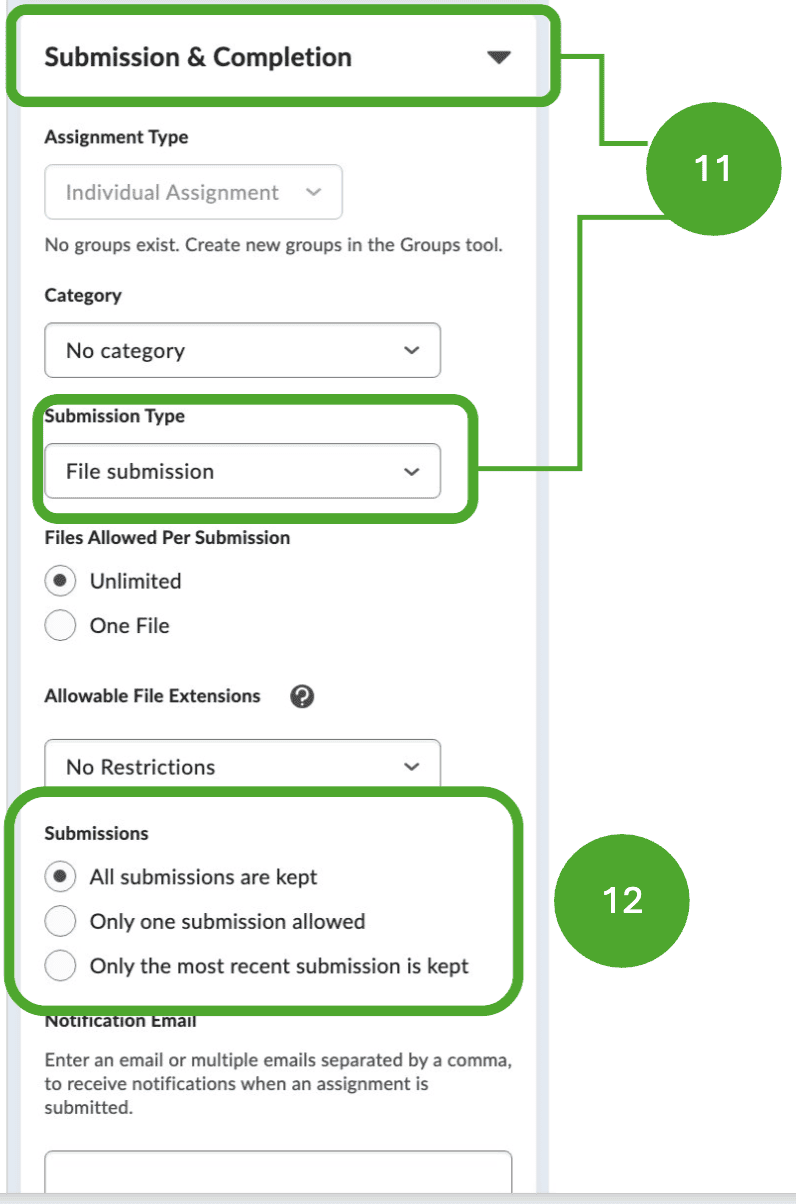
a. If you choose Text submission, the student will enter text in a text editing field.

b. If you choose File, you can allow any file type (“No restrictions”), or only specific types, e.g., PDFs, Images, etc.
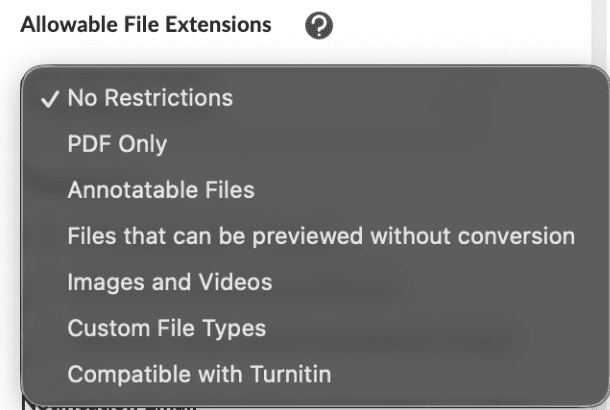
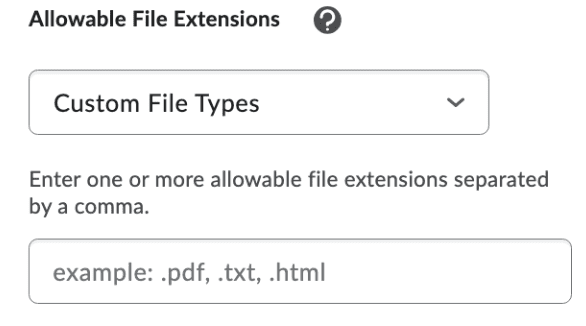
c. If you want to allow PDFs and Word docs, select Custom File Types and enter the file extensions “ .pdf, .doc, .docx.”
To allow only Word docs, enter “.doc,.docx.”
12. Decide how many submissions you will keep.

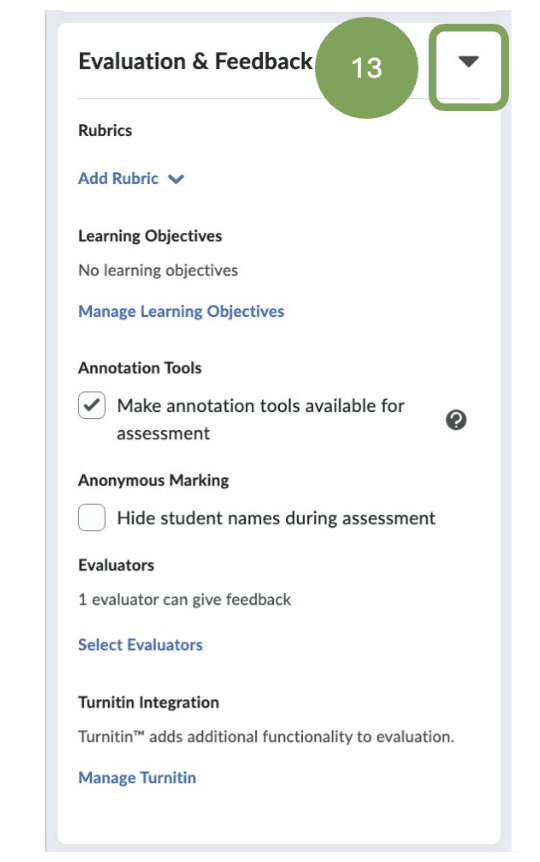
13. Select desired options under Evaluation & Feedback.
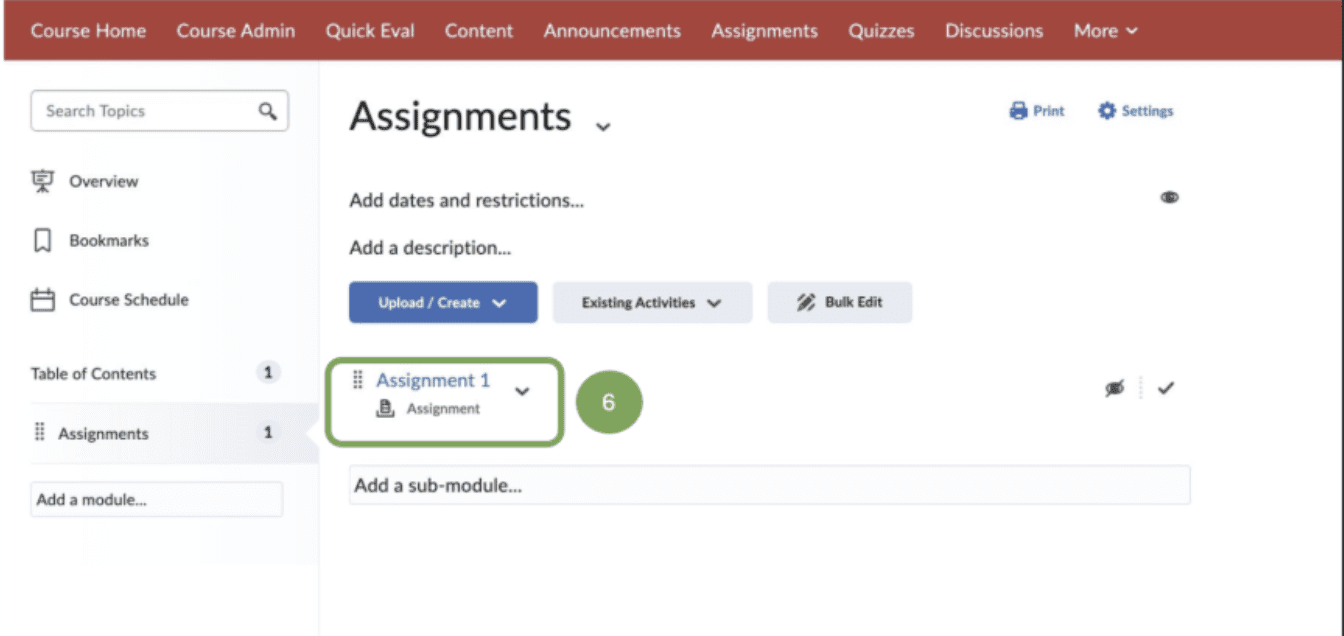
Add the assignment to a Content Module.

2. In this example, we will add the assignment to an existing module named Assignments. Click on the Assignment module in the Table of Contents.
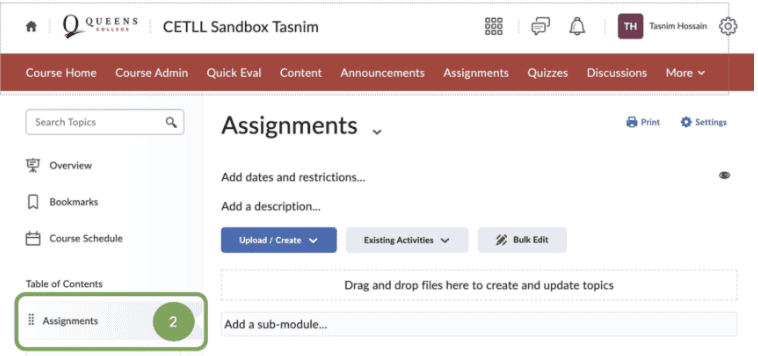
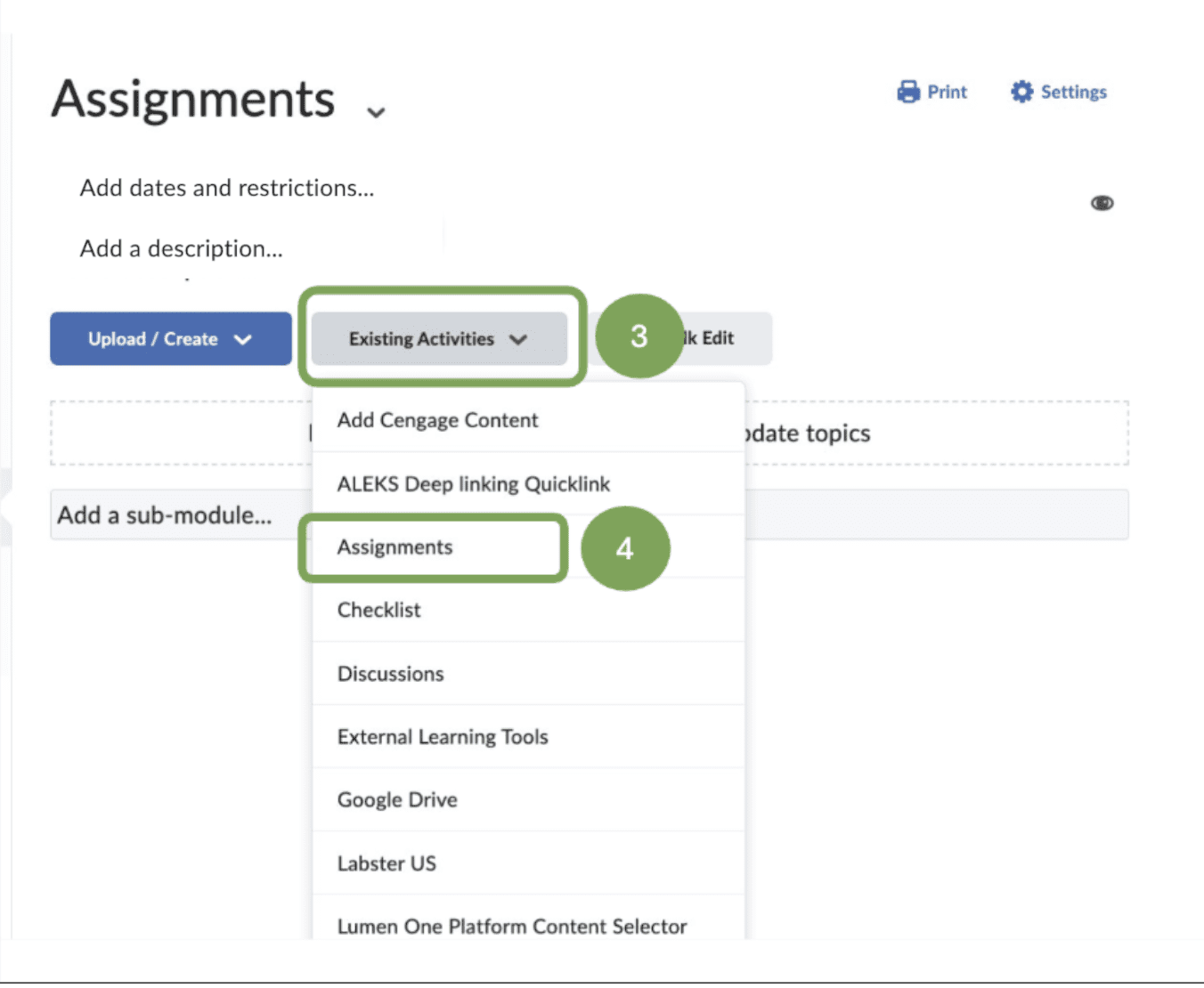
3. Click on Existing Activities.
4. Select Assignments from the drop-down menu.

6. The assignment will appear at the bottom of the list of assignments in the module. To reorder it, hover over the left side of the assignment until your cursor turns into a cross, then click, hold, and drag it to the desired position.